

Running one AI coding agent is straightforward. Running three at once is a different problem. Claude Code is implementing authentication, Codex is writing tests, and OpenCode is investigating a frontend bug. Each agent works fine alone. Together they leave you with a pile of terminal windows, overlapping edits, and no quick way to tell which one is waiting for you.
Opening more terminal windows doesn't fix this. You need a workflow that keeps the code separate, keeps the sessions alive, and lets you check on the agents when you're away from your desk.
Quick answer: to run several AI coding agents in parallel without losing control:
- Give each agent its own Git worktree so it edits its own directory and branch.
- Run each agent in a persistent session: tmux for a general-purpose multiplexer, or Herdr when you want agent states such as working, blocked, and done.
- Plan the shared resources that worktrees don't isolate: ports, databases,
.envfiles, and Docker services. - Reach the host over SSH or Mosh, with Tailscale when you're off the local network, so a dropped phone connection never stops an agent.
- Review every branch (
git diff, tests) before merging. An idle agent hasn't necessarily finished the task.
Checked November 13, 2026 against Herdr TUI v0.9.5, the Claude Code documentation, and Redock 3.3. Agent support and platform details change often, so the sources at the end are the reference.
1. Why running multiple AI coding agents gets messy
Several different problems show up as the number of sessions grows:
- Workspace confusion: which directory is each agent working in?
- Code conflicts: what happens when two agents modify the same files?
- Session management: which terminal holds the task you need?
- Missed input: is an agent still working, waiting for an approval, or finished?
- Remote access: how do you check on the agents when you're away from your computer?
Each problem has its own tool:
| Problem | What solves it |
|---|---|
| Overlapping code changes | Git worktrees |
| Sessions that must survive disconnects | tmux, Herdr, or psmux on native Windows |
| Knowing which agent needs attention | Herdr agent states, Redock Agent Updates |
| Reaching the development machine | SSH or Mosh, plus Tailscale off-network |
| Doing all of this from a phone | Redock |
More agents shouldn't mean more chaos. The rest of this guide sets up each layer in that order.
2. Give every agent its own Git worktree
Code isolation comes first. If Claude Code and Codex share one project directory, they can overwrite each other's files, change the same dependencies, or interfere with each other's Git operations. Separate terminal windows don't help, because they all still point to the same working directory.
What is a Git worktree?
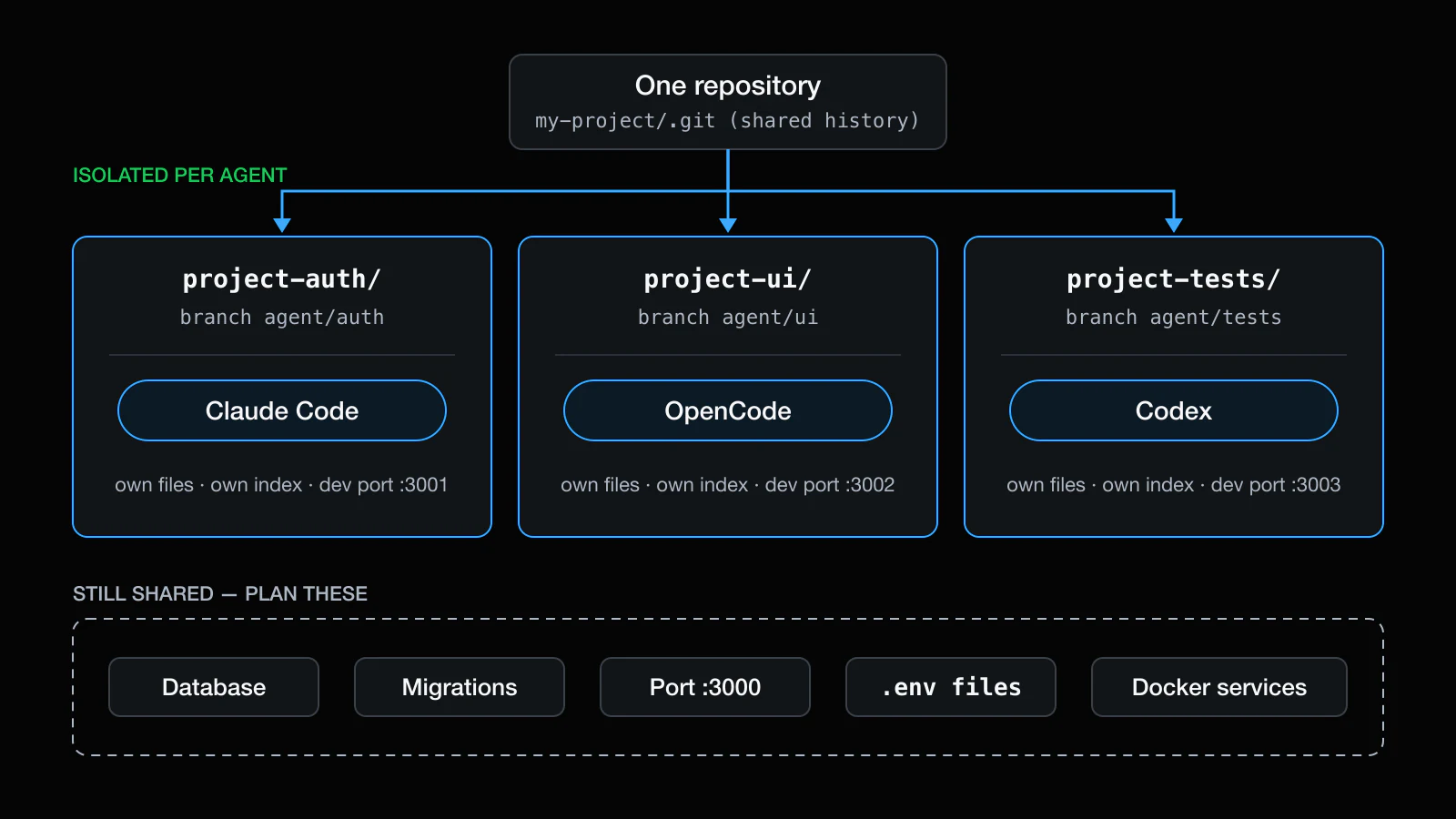
A Git worktree is an additional working directory that is attached to the same repository. Each worktree checks out its own branch with its own files and index, while all worktrees share one commit history. You get several working directories at once, without switching branches in one directory or cloning the repository again.
Create one worktree per task
From your existing repository:
cd my-project

git worktree add -b agent/auth  ../project-auth  main
git worktree add -b agent/tests ../project-tests main
git worktree add -b agent/ui    ../project-ui    main

git worktree list
You now have three independent directories, each on its own branch:
| Directory | Branch | Agent | Task |
|---|---|---|---|
project-auth/ |
agent/auth |
Claude Code | Authentication |
project-tests/ |
agent/tests |
Codex | Unit tests |
project-ui/ |
agent/ui |
OpenCode | Frontend bug |
Claude Code can also create a worktree itself: claude --worktree feature-auth starts an isolated session on its own branch. Run the same command with a different name in a second terminal to start another one. The Claude Code worktree docs explain where these worktrees live and how cleanup works. The manual commands above work the same way for every agent.
Review, merge, and clean up
When an agent finishes, review its branch before merging it:
cd ../project-auth
git status
git diff main...agent/auth
git diff --check
Run the relevant tests, then merge through your normal workflow. Once the branch is merged, remove the worktree so stale directories don't pile up:
git worktree remove ../project-auth
git branch -d agent/auth
git worktree prune
What worktrees don't isolate
Worktrees separate files and branches. Everything outside the repository is still shared:
- Databases and migrations: two branches migrating the same development database will collide.
- Ports: two dev servers can't both listen on
3000. Give each worktree its own port, for examplePORT=3001. - Untracked files:
.envfiles and other ignored files aren't copied into new worktrees. Copy or generate them deliberately. - Dependencies: each worktree needs its own
node_modules, virtualenv, or build output. - Docker containers and other local services.
- The same feature or API: separate branches can still produce changes that conflict when merged.
Rule of thumb: separate the code, and decide in advance how shared resources are used. See the official git-worktree documentation for more options.
3. Keep agent sessions running with tmux
Worktrees organize the code. Now you need terminal sessions that stay alive.
tmux is a terminal multiplexer. Its server owns the terminal processes, so an agent inside a tmux session keeps running after you detach, close the terminal app, or lose an SSH connection.
One session per agent
You can create each session detached, already in the right worktree, then start the agent in it:
tmux new-session -d -s auth  -c ../project-auth
tmux new-session -d -s tests -c ../project-tests
tmux new-session -d -s ui    -c ../project-ui

tmux send-keys -t auth  'claude'   Enter
tmux send-keys -t tests 'codex'    Enter
tmux send-keys -t ui    'opencode' Enter

tmux ls
tmux attach -t auth
Attaching returns you to the existing session. It doesn't start a new agent. Press Ctrl+B then D to detach again while the agent keeps working.
Useful tmux shortcuts
| Shortcut | What it does |
|---|---|
Ctrl+B, then D |
Detach from the session |
Ctrl+B, then S |
Pick a session from a list |
Ctrl+B, then C |
Create a new window |
Ctrl+B, then N / P |
Next / previous window |
Ctrl+B, then % |
Split the pane left and right |
Ctrl+B, then " |
Split the pane top and bottom |
Ctrl+B, then W |
Choose from windows across sessions |
A session is a working environment, a window is a full-screen tab inside it, and a pane is a split inside a window. One session per task (as above) keeps names readable from a phone. One session per project with a window per agent works well too. Choose the layout you can understand at a glance.
tmux has one limit for this workflow: it manages terminal processes, not agent state. It can't tell you whether Codex is thinking or waiting for an approval. See the tmux Getting Started guide or our tmux for mobile development article for more.
4. Use Herdr when you need agent awareness
Herdr is a terminal workspace manager built for running coding agents. Like tmux, it runs a background server that owns the terminals, so agents keep running when you detach. It adds a layer that tmux doesn't have: it recognizes the agent in each pane and reports what that agent is doing.
Which Herdr? This guide uses Herdr TUI, the terminal app (
herdr). The newer Herdr desktop app is built on herdr-core (hc), a separate runtime, and agents don't move between the two. The Herdr site also lists its own iPhone, iPad, and Android apps for checking on agents; this guide and Redock's Herdr integration cover Herdr TUI. See Herdr TUI vs herdr-core for the details.
Workspaces, tabs, and panes
Herdr usually gives each project or branch its own workspace. A workspace holds tabs, each agent or terminal runs in its own pane, and a sidebar groups the agents by state. With worktrees, a natural layout is one workspace per worktree, with one agent pane plus a pane for tests or logs.
Herdr's agent states
| State | What it means | What to do |
|---|---|---|
working |
The agent is actively running | Leave it alone |
blocked |
Waiting on a visible approval, question, or permission prompt | Answer it |
done |
Finished; it stays highlighted until you view it | Review the output |
idle |
At its prompt | Check before sending input |
Two details matter in practice. First, done and idle don't mean the task succeeded. They mean the agent stopped. Always read the output and run the tests. Second, Herdr's blocked detection is deliberately strict, so an unusual new prompt may show as idle at first. Its documentation warns not to treat idle as permission to send input.
Supported agents and integrations
Herdr recognizes 23 agents, including Claude Code, Codex, OpenCode, GitHub Copilot CLI, Cursor Agent CLI, Pi, Kimi Code, Qwen Code, and Gemini CLI. Most are detected by reading the bottom of the pane. Installing an integration adds state reports for some agents and lets a conversation resume after a Herdr server restart:
herdr integration install claude
herdr integration install codex
herdr integration status
The Herdr agents page has the current list and the detection method for each agent.
What survives what
| Event | tmux | Herdr TUI |
|---|---|---|
| Client detaches or SSH drops | Agents keep running | Agents keep running |
| Server restarts | Sessions are gone | Layout and directories restored; agents with a current integration resume their conversation |
| Machine reboots or loses power | Sessions are gone | Restored like a server restart from the last saved layout |
tmux or Herdr?
| tmux | Herdr TUI | |
|---|---|---|
| Persistent sessions, windows/tabs, panes | Yes | Yes |
| Recognizes coding agents | No | 23 agents |
| Agent states (working / blocked / done / idle) | No | Yes |
| Agent conversation restore after server restart | No | With integrations |
| Command-line compatibility | The standard | Its own CLI, not tmux-compatible |
| Best for | Lightweight, general-purpose terminals | Several agents across projects |
Choose one per agent. Don't run an agent inside tmux inside a Herdr pane. Herdr identifies the agent from the pane's foreground process, and a nested tmux hides it, so status detection and conversation restore stop working. For a deeper comparison, read How Herdr works vs tmux.
5. Platform compatibility: macOS, Linux, and Windows
The workflow is the same everywhere, but tool support isn't:
| macOS | Linux | Windows (native) | Windows (WSL2) | |
|---|---|---|---|---|
| Git worktrees | Yes | Yes | Yes | Yes |
| tmux | Yes (Homebrew) | Yes | No, use psmux | Yes |
| Herdr TUI | Yes | Yes | Beta (ConPTY) | Linux build |
| Redock session persistence | tmux, Herdr | tmux, Herdr | psmux | tmux, Herdr |
| Redock Background Long Task Actions | Yes | Yes | No | Yes |
macOS
brew install tmux
tmux -V

curl -fsSL https://herdr.dev/install.sh | sh   # optional: Herdr TUI
Enable System Settings → General → Sharing → Remote Login so you can reach the Mac over SSH. Then install your coding agents with their official instructions.
Linux
sudo apt update && sudo apt install tmux
tmux -V

curl -fsSL https://herdr.dev/install.sh | sh   # optional: Herdr TUI
A Linux workstation or server that stays on is the most dependable host for long-running agents.
Windows
Windows has two paths:
- WSL2 (Linux workflow): run
wsl --installin an administrator PowerShell, restart if prompted, then install tmux, Git, and your agents inside Ubuntu. Keep repositories on the Linux filesystem (~/code), not under/mnt/c, for better performance and fewer path problems. To reach this environment from your phone, follow the Windows (WSL2) remote login guide. - Native Windows: Herdr TUI has a Windows beta (
powershell -ExecutionPolicy Bypass -c "irm https://herdr.dev/install.ps1 | iex") that runs panes through ConPTY. It supports persistent sessions, agent detection, and Git/worktree detection. Agent detection scans the pane's process tree instead of Unix process groups, so results can differ from macOS and Linux, and fewer integrations can be installed. For a tmux-compatible persistent session in PowerShell, use psmux.
From Redock: Redock's Herdr integration currently targets macOS and Linux hosts, including WSL2. For a native Windows host reached over OpenSSH, choose psmux as the Host's session persistence instead. Background Long Task Actions need a POSIX host with tmux. See Herdr's Windows beta notes and Microsoft's WSL installation guide.
6. Keep the workflow reachable from anywhere
Your agents keep working after you leave your desk. You might need to answer an approval, read a result, or start the next step. You don't move the development environment to your phone. You connect to it.
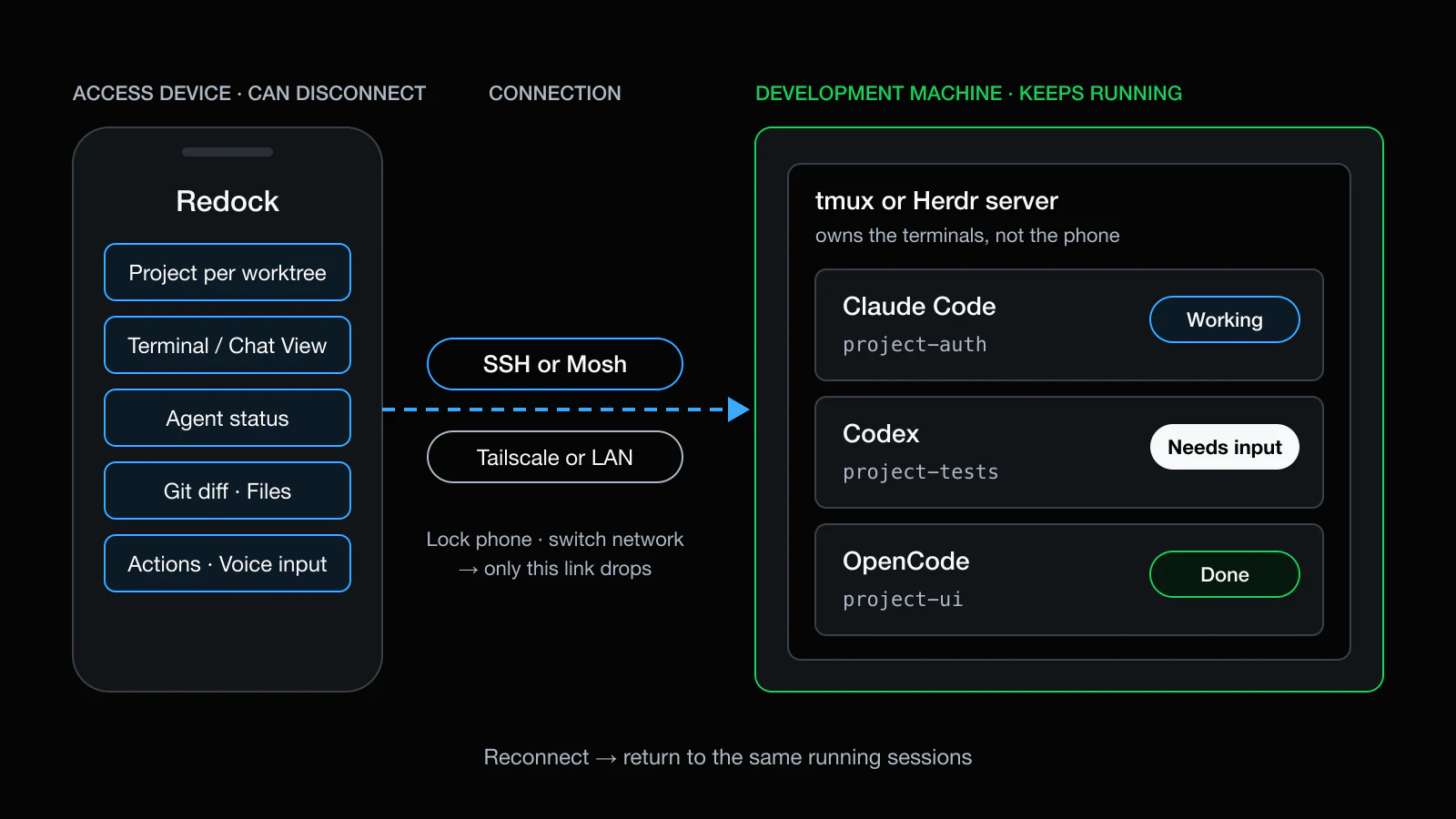
Each layer has one job:
| Layer | Job | What it doesn't do |
|---|---|---|
| SSH | Encrypted remote terminal on the host | Keep processes alive after disconnect |
| Mosh | Keeps an interactive terminal usable across Wi-Fi/cellular switches and sleep | Replace tmux or Herdr |
| Tailscale | Private network between your devices, with no public SSH port | Provide the shell; SSH must still run on the host |
| tmux / Herdr | Own the terminals so agents outlive the connection | Survive a crash or shutdown with the original processes |
What happens when your phone disconnects?
- You start Claude Code in a tmux session or Herdr pane on your development machine.
- You connect from your phone with Redock and check on it.
- You lock the phone or switch from Wi-Fi to cellular.
- The SSH connection drops. The session on the host keeps running.
- You reconnect and land in the same session, with the agent's output intact.
The agent runs on the development machine, not on your phone. A disconnected phone doesn't stop the coding task. The persistence ends only if the host shuts down, crashes, or the process is killed.
7. How Redock fits into a multi-agent workflow
Redock is a mobile SSH and Mosh terminal for iOS and Android, built around AI coding agents. The screenshots below are from the iOS app. It doesn't replace Git, tmux, Herdr, or your agents. It connects your phone to the setup you already run.
One Project per worktree
A Redock Project binds a Host to a working directory and keeps its Actions, Snippets, and connections together. Create one Project per worktree (project-auth, project-tests, project-ui) and each agent's context is one tap away.
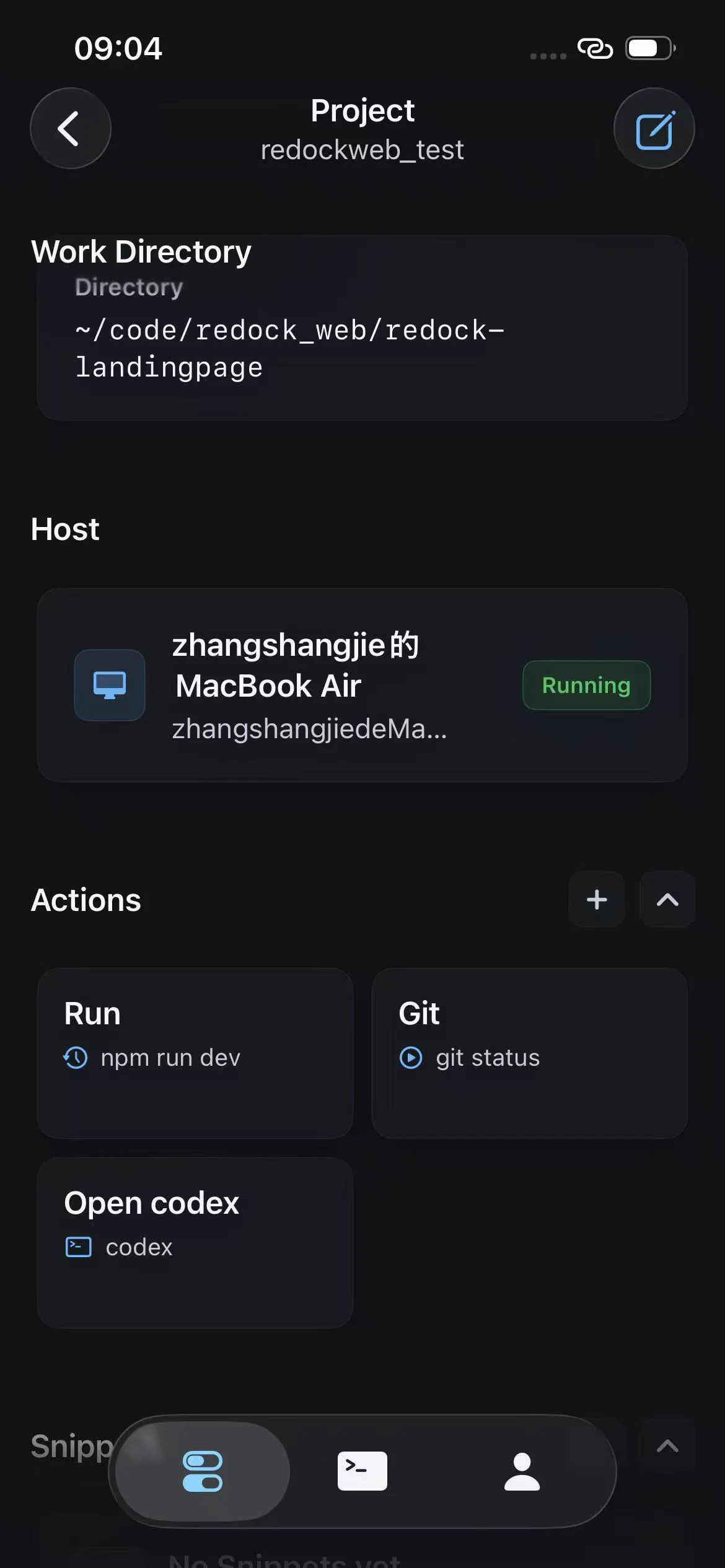
Start work with Actions
Actions are saved commands with a run mode:
- Terminal Interactive opens a terminal and keeps the session available, which suits
claudeorcodex. - Quick Task runs over SSH, waits for completion, and saves the output as a Run, which suits
npm testorgit status. - Background Long Task starts in remote tmux and saves logs, so it keeps going after the phone disconnects.
Return to existing sessions
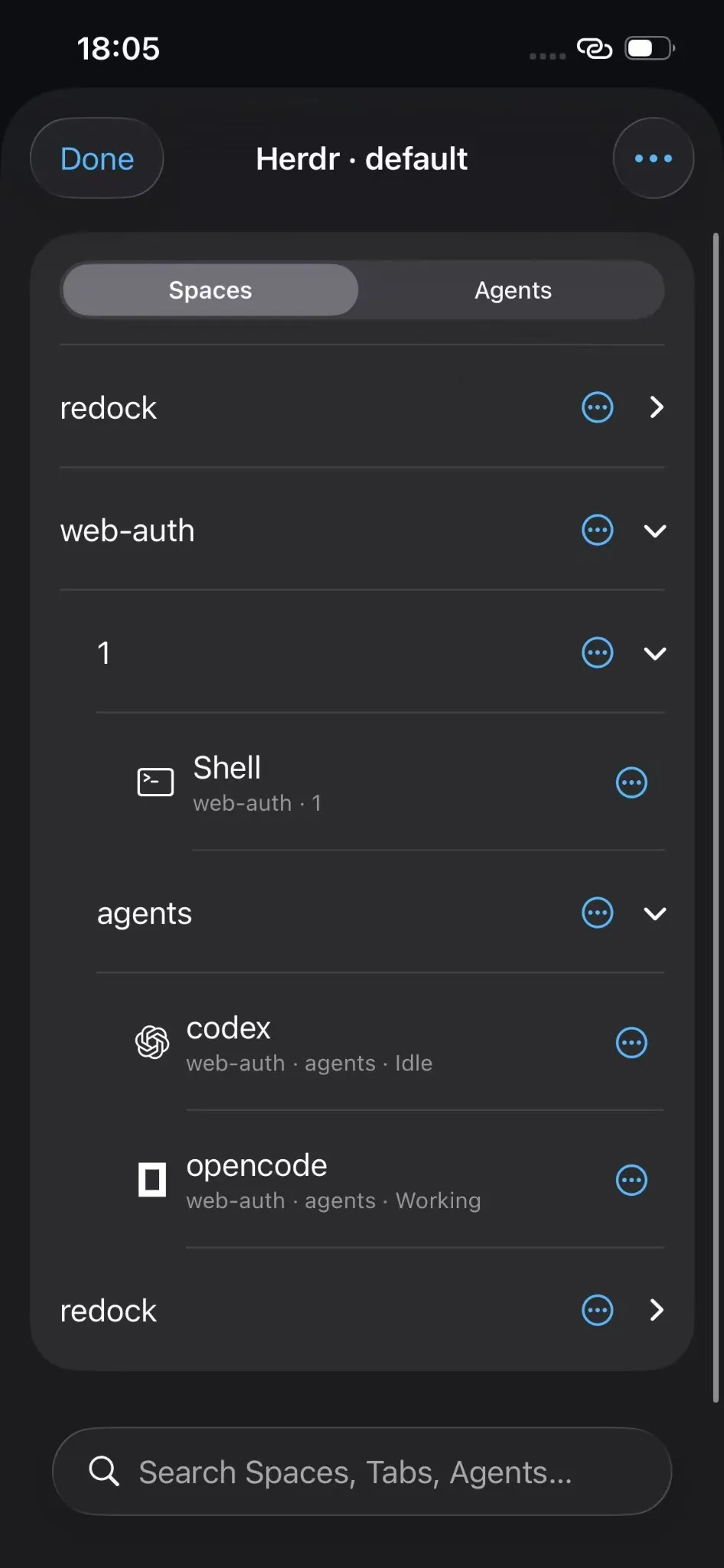
Choose tmux, Herdr, or psmux as a Host's session persistence, and Redock reattaches to the existing session instead of opening a fresh shell. With Herdr, the workspace panel lists Spaces, Tabs, Panes, and Agents with their states (Working, Attention, Done, Idle). Tap a row to jump to that terminal.
See which agents need you
With the optional Redock hook installed on the host (Redock Pro), the Agent Updates page shows each session as Working, Attention, Completed, or Failed. Notifications and Live Activities arrive when an agent finishes or needs input, even when the app isn't open. Status, notifications, and Chat View are available for the agents Redock supports, including Claude Code, Codex, and OpenCode. The exact signals depend on each agent's integration.
Read and reply in Chat View
Chat View shows the live agent conversation as readable messages, with Markdown, tables, and code. Your reply goes back into the same terminal session. It supports Claude Code, Codex, OpenCode, Pi, Oh My Pi, Kimi Code, Grok Build, and Antigravity CLI.
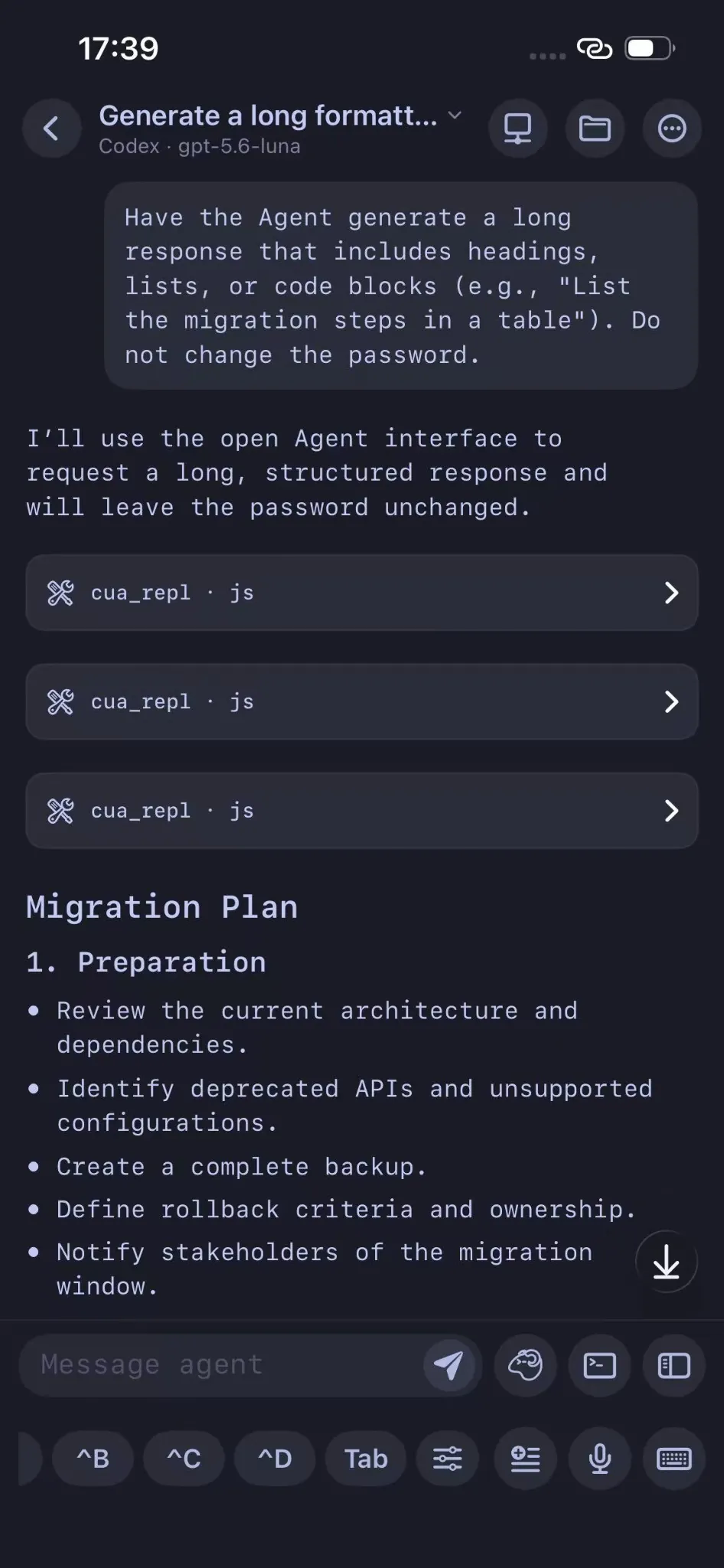
Review the changes on the phone
- Git diff view: inspect staged, unstaged, and untracked changes in the current pane's repository. Diffs show in one or two columns, and you can stage or commit. This is the natural way to check a worktree branch before merging.
- Files: browse and preview files over SFTP.
- Web Preview: open a dev server's
localhostURL through an SSH tunnel, which is useful when each worktree runs on its own port. - Voice input: dictate a long prompt and edit the transcript before it is sent.
Your computer does the work. Your phone keeps you in control.
8. Put it together: a practical multi-agent workflow
Step 1: split the work into independent tasks. Authentication, frontend improvements, and unit tests. If two tasks touch the same files or migrations, run them one after the other.
Step 2: create the worktrees.
git worktree add -b agent/auth  ../project-auth  main
git worktree add -b agent/ui    ../project-ui    main
git worktree add -b agent/tests ../project-tests main
Copy any needed .env files and assign a distinct dev-server port to each.
Step 3: pick one session manager. Use a tmux session per task, or a Herdr workspace per worktree. Don't nest them.
Step 4: launch the agents, claude in project-auth, opencode in project-ui, and codex in project-tests.
Step 5: monitor attention, not terminals. Use Herdr's sidebar or Redock's Agent Updates to see who is blocked or done. With plain tmux, check the sessions in turn with Ctrl+B, then S.
Step 6: review each branch. Run git diff main...agent/<task>, run the tests, and merge only when they pass. A finished-looking terminal isn't a passing test suite.
Step 7: continue remotely. Open Redock, pick the Project, and return to the same session. Answer the approval, read the diff, or start the next Action.
Step 8: clean up. Run git worktree remove and delete the merged branch.
FAQ
Can I run multiple Claude Code sessions at the same time?
Yes. Each Claude Code process is independent. For tasks that change code, give each session its own worktree, either with git worktree add or with Claude Code's built-in claude --worktree <name>.
How many AI coding agents should I run in parallel?
Start with two or three. The limit is rarely the machine. It's your capacity to review results and answer approvals. Add more agents only when the tasks are truly independent and you can review each branch.
Should every AI coding agent have its own Git worktree?
Every agent that edits files should. Agents that only read code, answer questions, or run analysis can share a directory.
What's the difference between tmux and Herdr?
Both keep terminals running after you disconnect. tmux is a general-purpose multiplexer that doesn't know what an agent is doing. Herdr recognizes coding agents and shows whether each is working, blocked, done, or idle. Use one per agent, not one inside the other.
Does Herdr work on Windows?
Herdr TUI has a native Windows beta that runs on ConPTY, with a narrower set of integrations and some keyboard and cursor limitations. It also runs inside WSL2 as a Linux program. Redock's Herdr integration targets macOS and Linux hosts. Use psmux for native Windows.
Will my AI agent keep running if SSH disconnects?
Yes, if it runs inside tmux, Herdr, or psmux on the host. Without one of them, closing the SSH session usually ends the agent. None of these keeps the original process alive through a reboot, crash, or power loss.
Can I control multiple AI coding agents from my phone?
Yes. With Redock you can reattach to tmux or Herdr sessions, see which agents need input, reply in Chat View or the terminal, and review diffs, while the agents keep running on your development machine.
Final thoughts
Running several AI coding agents is productive only when the workflow is organized:
- Git worktrees separate the code.
- tmux or Herdr keeps the sessions alive, and Herdr shows which agent needs you.
- SSH, Mosh, and Tailscale make the machine reachable.
- Redock brings all of it to your phone.
Keep your code, tools, and agents on the development machine. Use your phone to stay connected to the decisions.
Sources and further reading
- git-worktree documentation
- Claude Code: run parallel sessions with worktrees
- tmux Getting Started
- Herdr TUI, supported agents, session state, and Windows beta
- Herdr TUI v0.9.5 release notes
- Microsoft WSL installation guide
- Tailscale SSH documentation
- Redock guides: tmux, herdr, psmux, Tailscale, Mosh
- Related: Using Herdr inside Redock, Remote AI coding stack 2026, Run Claude Code from your phone