

tmux is a terminal session manager that runs on the remote Host. Redock uses tmux so the remote session can stay on the server: if the phone disconnects, the app goes to the background, or the network changes briefly, the work can keep running and you can return to it later.
Redock creates, attaches, and restores tmux sessions for you. Commands, agents, tests, and builds still run on the remote Host.
When to Use tmux
- You run interactive agents such as Claude Code, Codex from your phone.
- A command may run for a long time, such as tests, builds, log following or data jobs.
- You often background the app, or your connection moves between Wi-Fi, cellular, and hotspots.
When You Do Not Need tmux
- You only need a short-lived shell for a few quick commands.
- You are using SFTP to browse or edit files. SFTP does not depend on tmux.
- You are using a Redock Quick Task for a command that finishes quickly, such as one
npm testrun or a health check. - You want every connection to start as a fresh clean shell and do not need to restore previous state.
- The remote Host cannot install tmux, or you are still troubleshooting basic SSH connectivity.
If you are unsure, start with a normal SSH Host. Enable tmux after the basic connection works and you know you need session recovery.
Install tmux on the Remote Host
macOS:
brew install tmux
Windows:
For native Windows, use psmux. For WSL development, install tmux inside WSL.
Important: in this setup, tmux manages shells, processes, and working directories inside the WSL/Linux environment. It does not manage native Windows PowerShell/cmd sessions.
wsl --install
Then enter WSL and install tmux:
sudo apt update
sudo apt install tmux
If you enable tmux in Redock, the SSH login must land directly in a WSL/Linux shell that can run tmux.
Confirm that tmux is installed:
tmux -V
command -v tmux
Enable tmux in Redock
- Open Redock.
- Edit the Host.
- Make sure SSH or Mosh can already sign in.
- Find the tmux setting and enable it.
- Save the Host.
- Open a new connection from Launch, Project, or Action.
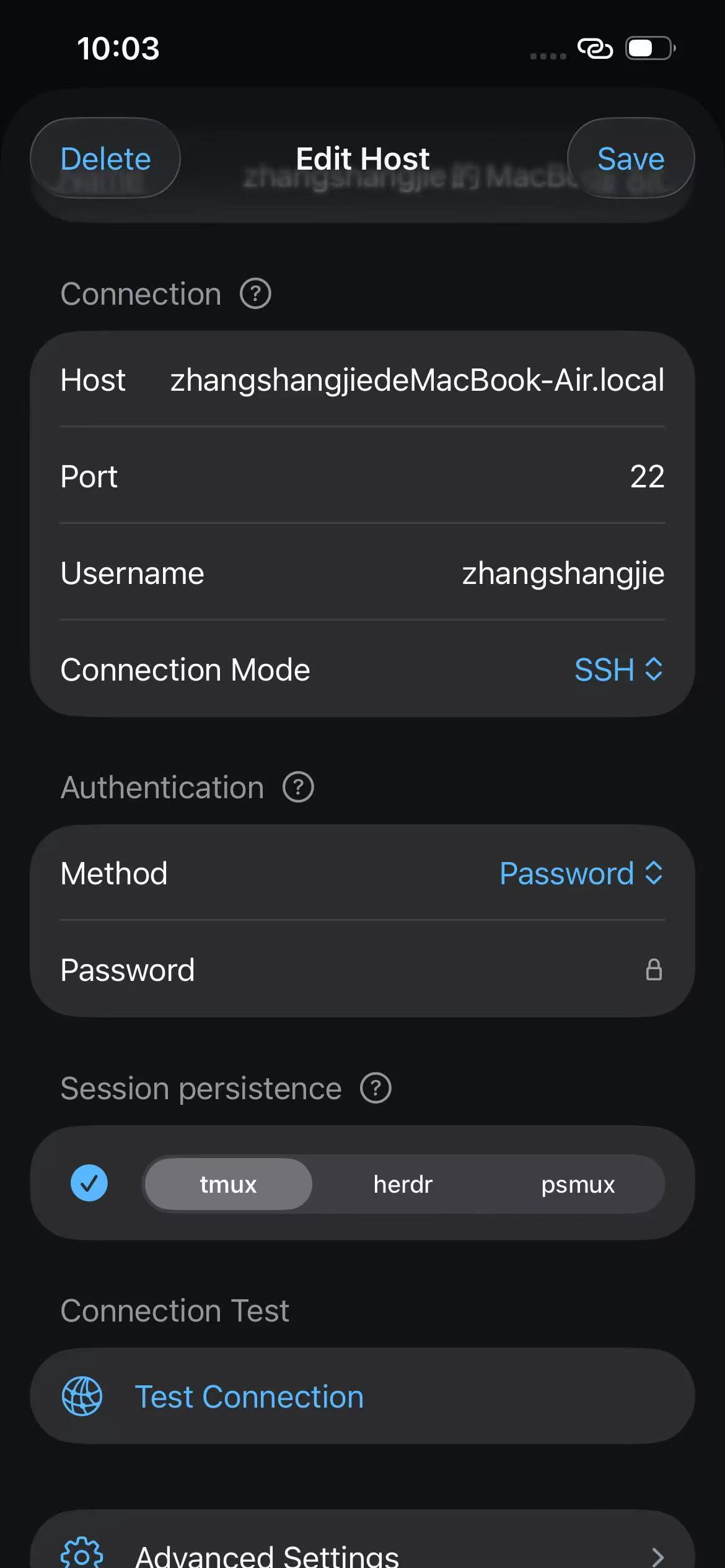
After tmux is enabled, Redock shows tmux session choices when needed. You can create a new tmux session or attach to an existing one. For daily use, you do not need to type tmux new or tmux attach.
What Redock Does Automatically
- Creates new tmux sessions.
- Attaches to existing tmux sessions.
- Reconnects back to the original tmux session when possible.
- Provides tmux snippets inside Terminal for common tmux commands.
Redock generates tmux session names from the Host, Project, or Action. This keeps sessions for different projects and entry points separate.
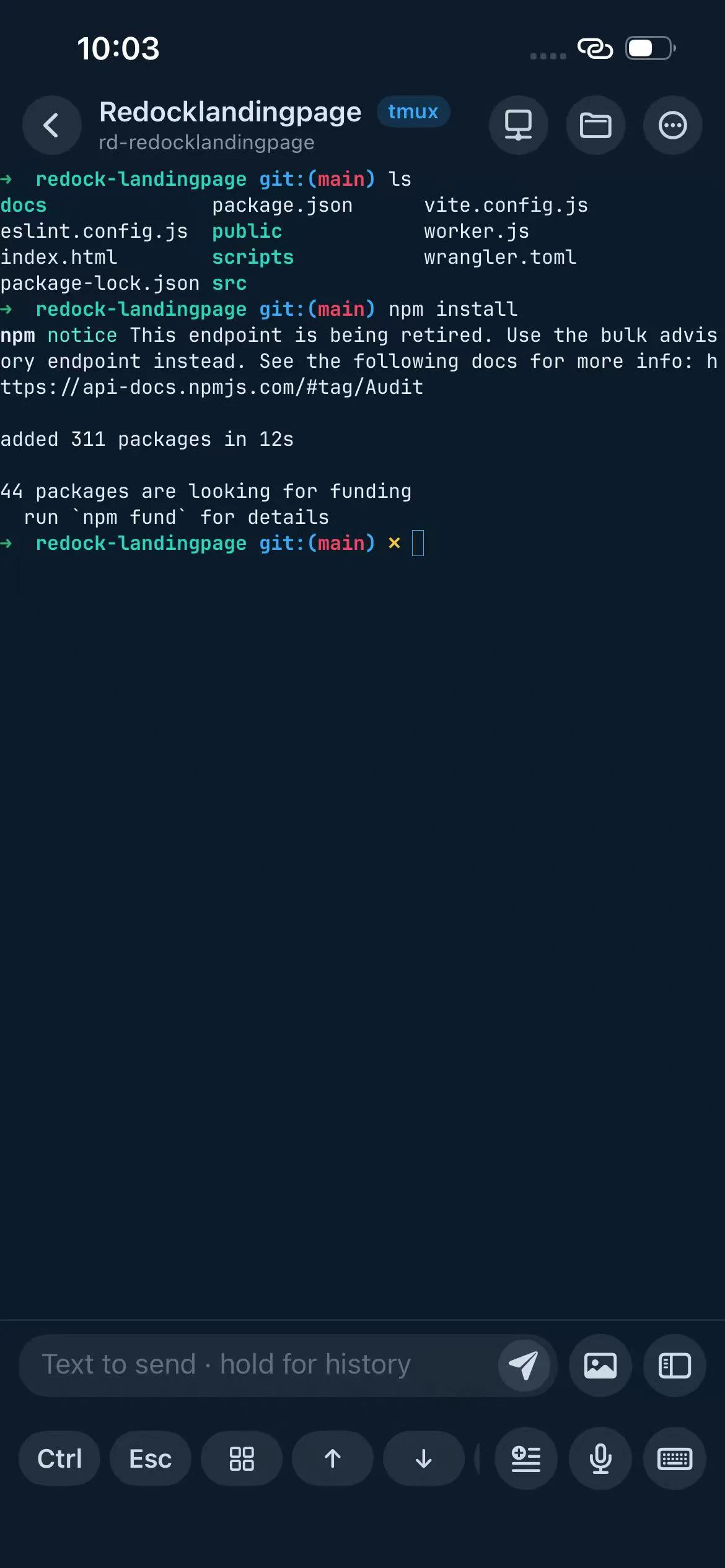
Use tmux Snippets in Terminal
Inside a terminal, open the snippet panel and choose the tmux group. Common uses include:
- List sessions.
- Create or switch windows.
- Split panes horizontally or vertically.
- Switch panes.
- Capture recent output.
- Send the tmux prefix.
For example, to capture recent output, use the built-in capture snippet:
tmux capture-pane -p -S -200
If you already know tmux, you can still type tmux commands directly. Redock's tmux support is there to remove the repetitive create, attach, and restore steps.
tmux and Mosh
tmux and Mosh solve different problems:
- tmux keeps sessions and tasks alive on the remote Host.
- Mosh improves interactive connectivity on mobile networks.
You can use tmux alone, or use tmux and Mosh together. A practical path is to first use SSH plus tmux; if you often switch networks, read Mosh Setup.
Next Steps
- First Host connection: read Quick Start.
- Combining tmux with Projects, Actions, and Snippets: read Redock Best Practices.