

The fastest way to try Redock is to connect your phone or tablet to a Mac on the same Wi-Fi. This path avoids public networking and lets you verify SSH, projects, AI coding agents, and tmux recovery first.
What You Need
- A Mac that you can sign in to.
- Redock installed on your iOS or Android device.
- Both devices connected to the same Wi-Fi.
- Your macOS username and password.
- Optional remote tools:
tmux,claude,codex, oropencode.
Redock connects to your remote host. Claude Code, Codex, opencode, Node, Python, and other tools must be installed on the Mac or server, not on the mobile device.
Once the Host is connected, you can control Codex CLI from your phone or tablet over SSH, resume Claude Code in a tmux session, and keep each repository organized as a mobile Project workspace for AI coding agents.
Enable Remote Login
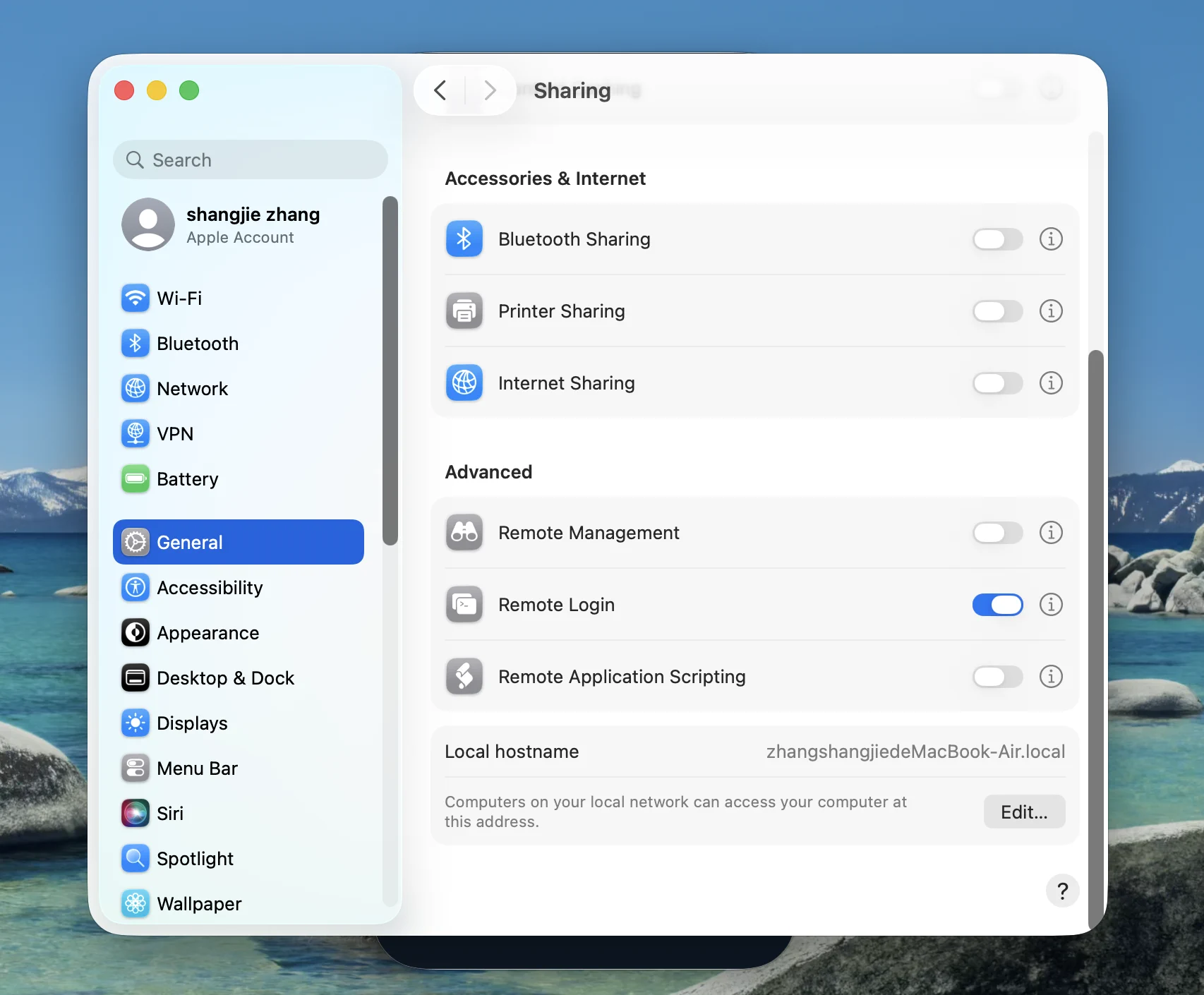
- Open System Settings on the Mac.
- Go to General > Sharing.
- Turn on Remote Login.
- Prefer Only these users and allow only your development account.
- Keep the Mac awake and connected to Wi-Fi while testing.
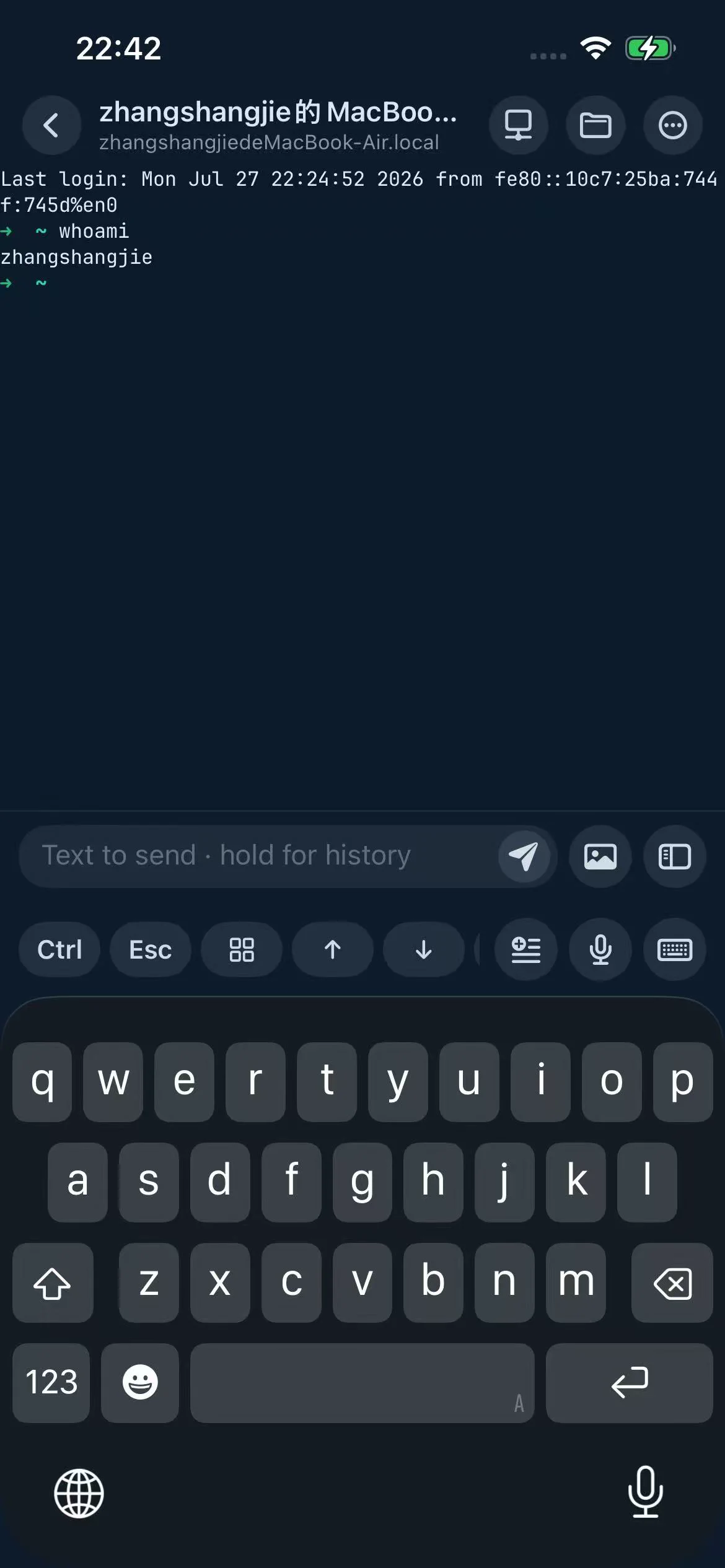
You can confirm your username in Terminal:
whoami
If local discovery does not find the Mac, check the Wi-Fi address:
ipconfig getifaddr en0
Add the Host in Redock
- Open Redock and go to Launch.
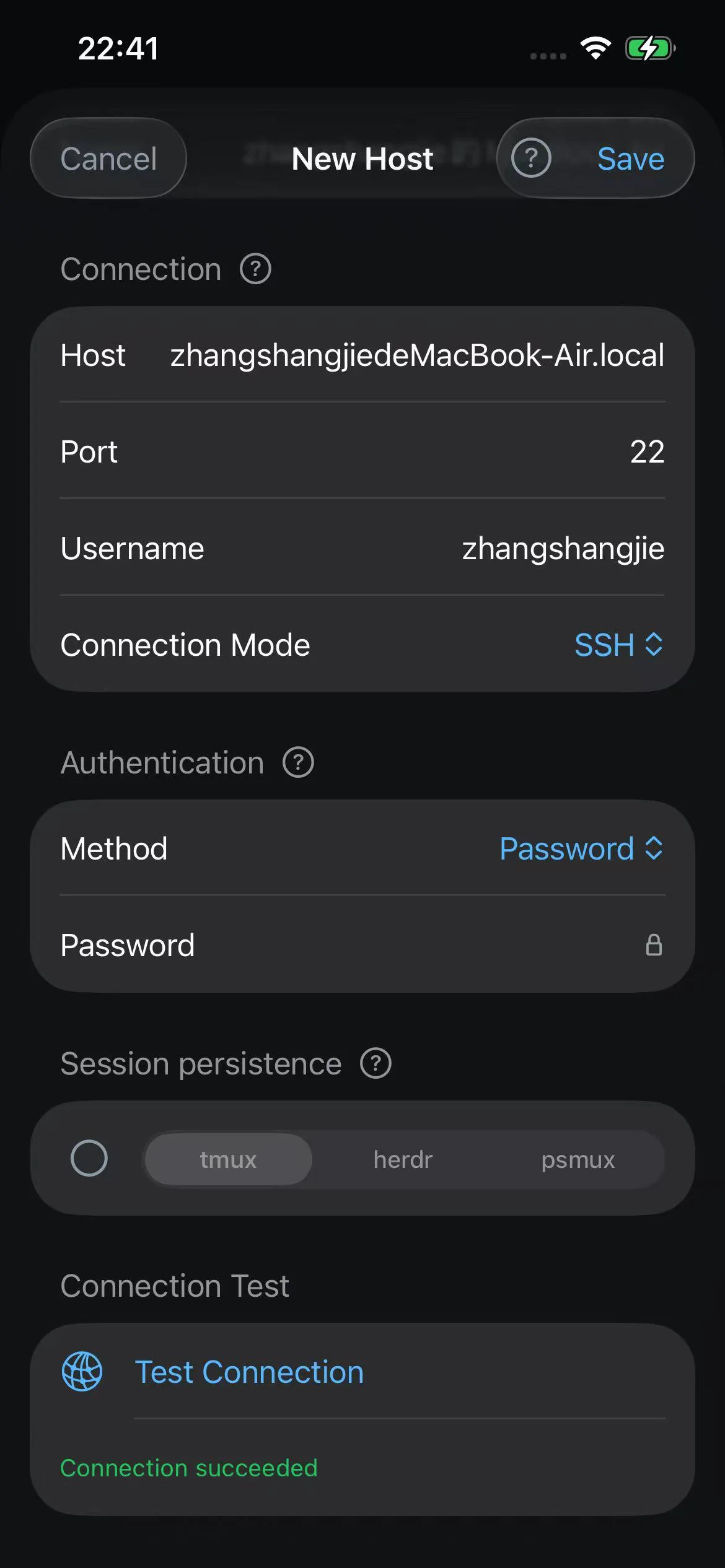
- Add a Host.
- Tap Discover Local Devices. Allow local-network access if your device asks.
- Select the discovered Mac, or enter the LAN IP manually.
- Use Port
22. - Enter your macOS username.
- Start with Password authentication.
- Save and connect.
Host configuration for a typical local Mac:
Host: 192.168.1.23
Port: 22
Username: your-mac-username
Auth: Password
Connection Mode: SSH
Try the Core Workflow
After the terminal opens, enter a project directory:
cd ~/Projects/your-project
Start the AI coding agent installed on the remote host:
claude
codex
opencode
If tmux is installed on the Mac, enable Redock tmux in the Host settings. Redock can then create and restore sessions so long-running work survives brief network changes or app backgrounding.
Next Steps
- Switch from Password to SSH Key once the local connection works.
- Add a Project in Redock for your common working directory.
- Create Actions for repeatable commands such as tests, status checks, or agent launch commands.
- Configure Tailscale if you want to connect outside the same Wi-Fi.
Troubleshooting
- Connection refused: Remote Login is off, or the Port is not
22. - Connection timed out: the devices are not on the same network, the IP changed, or Wi-Fi blocks local traffic.
- Authentication failed: check that Username is your macOS account name, not your Apple ID.
- AI agent command not found: install the tool on the remote Mac and confirm it is in
PATH.