

Redock is organized around the development cycle, not only writing code. Use it to start implementation work, run tests, verify changes, inspect logs, prepare releases, and return to long-running tasks. Projects package the working context, Actions execute repeatable steps, and Snippets cover fast terminal input while you are already inside a session.
Model the Development Cycle
Think about each repository as a workflow:
- Open the right project context.
- Start an agent or shell for implementation.
- Run tests and checks.
- Inspect status, logs, and build output.
- Execute release or deployment steps when appropriate.
Redock is strongest when those steps are captured as Project context plus Actions, instead of being remembered as loose terminal commands.
Keep Connection Addresses Clear
Create one Host for each stable connection address:
Home Mac - LANfor same-Wi-Fi use.Home Mac - Tailscalefor private remote access.VPS - Prodfor a cloud server.Mac - ngrokfor temporary access.
Avoid repeatedly editing one Host between LAN, Tailscale, and ngrok addresses. Separate Hosts make connection history, Projects, and Actions easier to reason about.
Use Projects for Repeated Work
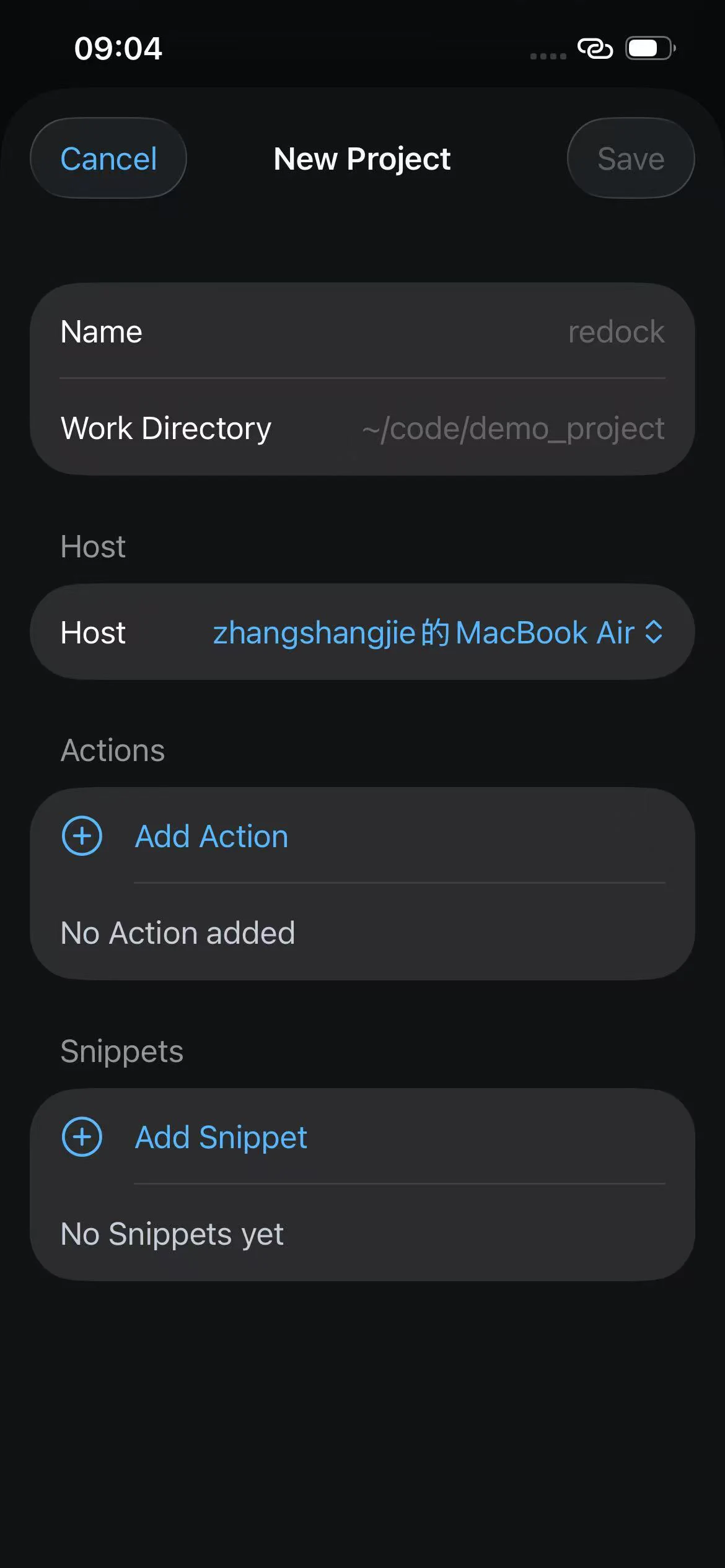
A Project packages one Host and one working directory into a reusable development context. Use a Project when you repeatedly work in the same repository or service.
Good Project examples:
Redock mobile app (iOS or Android)
Host: Home Mac - Tailscale
Working Directory: ~/Documents/code/redock
Website
Host: VPS - Dev
Working Directory: /srv/www/redock.dev
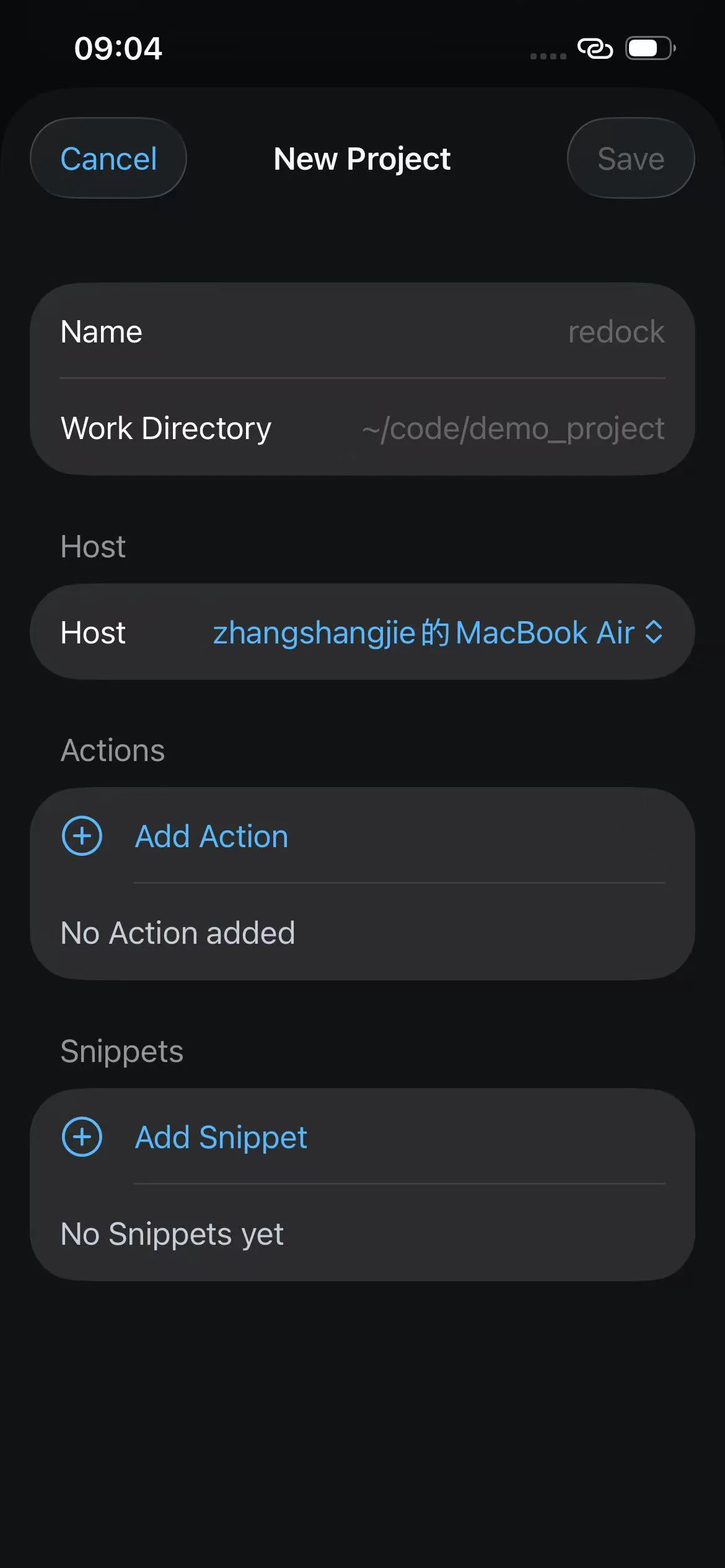
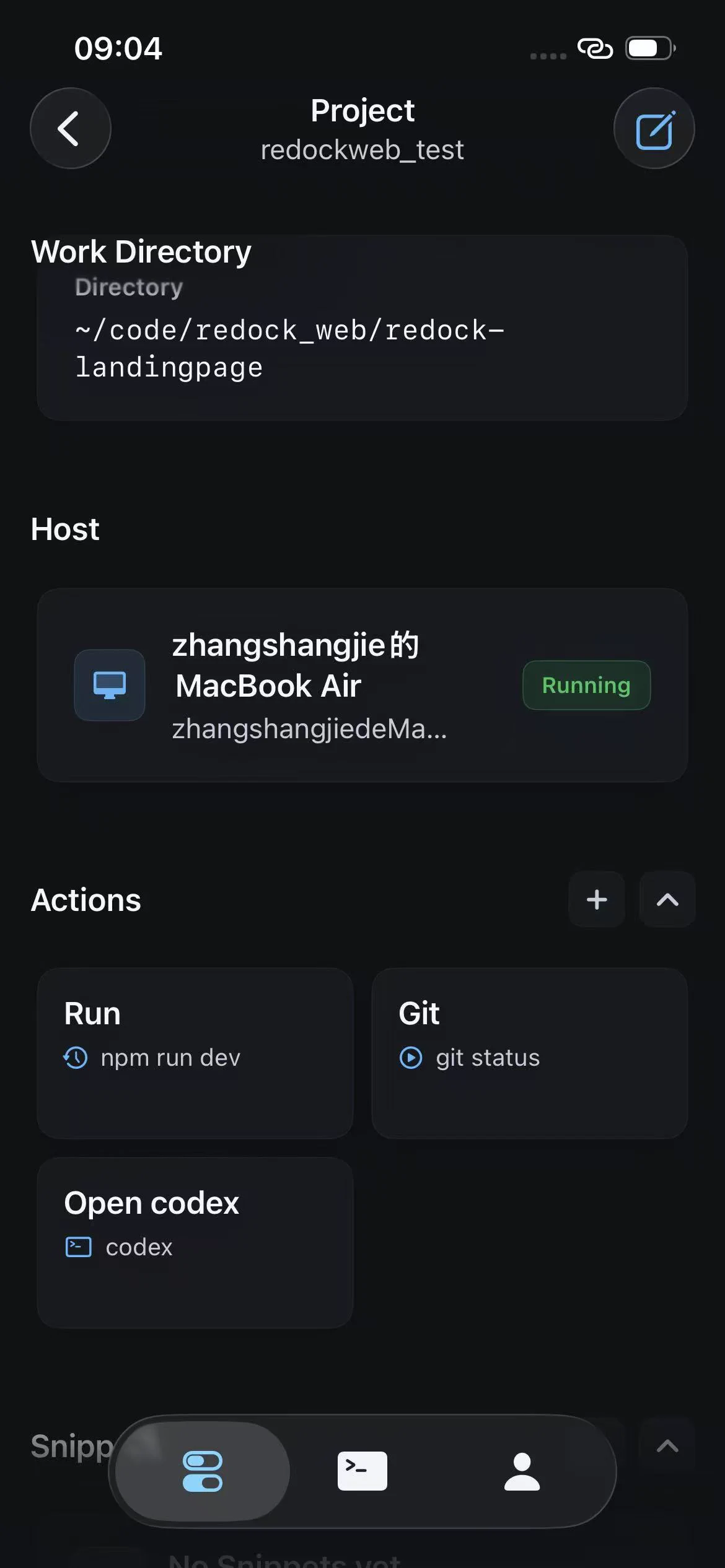
Project Home shows project actions, project snippets, related connections, and tmux entry points in the same context. Project actions are private copies, so a build, test, verification, or release action can be tailored to that project without changing another project.
Choose the Right Action Mode
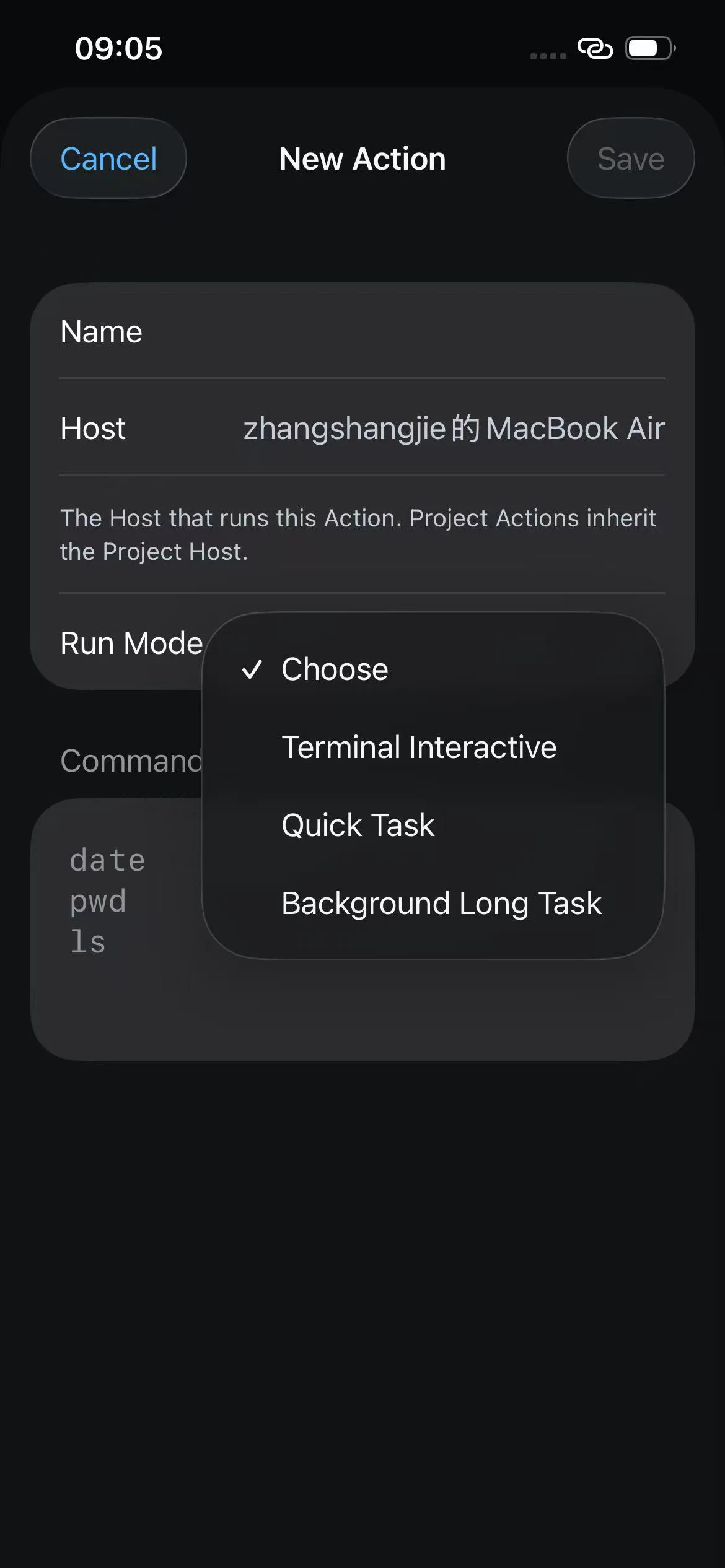
Actions execute repeatable workflow steps. Use them for coding agents, tests, verification, builds, release checks, deployment scripts, and operational checks. Pick the run mode based on how the command behaves.
- Terminal Interactive: use for Claude Code, Codex, opencode, REPLs, log following, dev servers, and anything that needs continued input.
- Quick Task: use for commands that finish and produce useful output, such as
npm test,pytest, smoke tests, health checks, or release verification. - Background Long Task: use for long builds, long tests, data jobs, deployments, or agent runs that should continue after the phone disconnects.
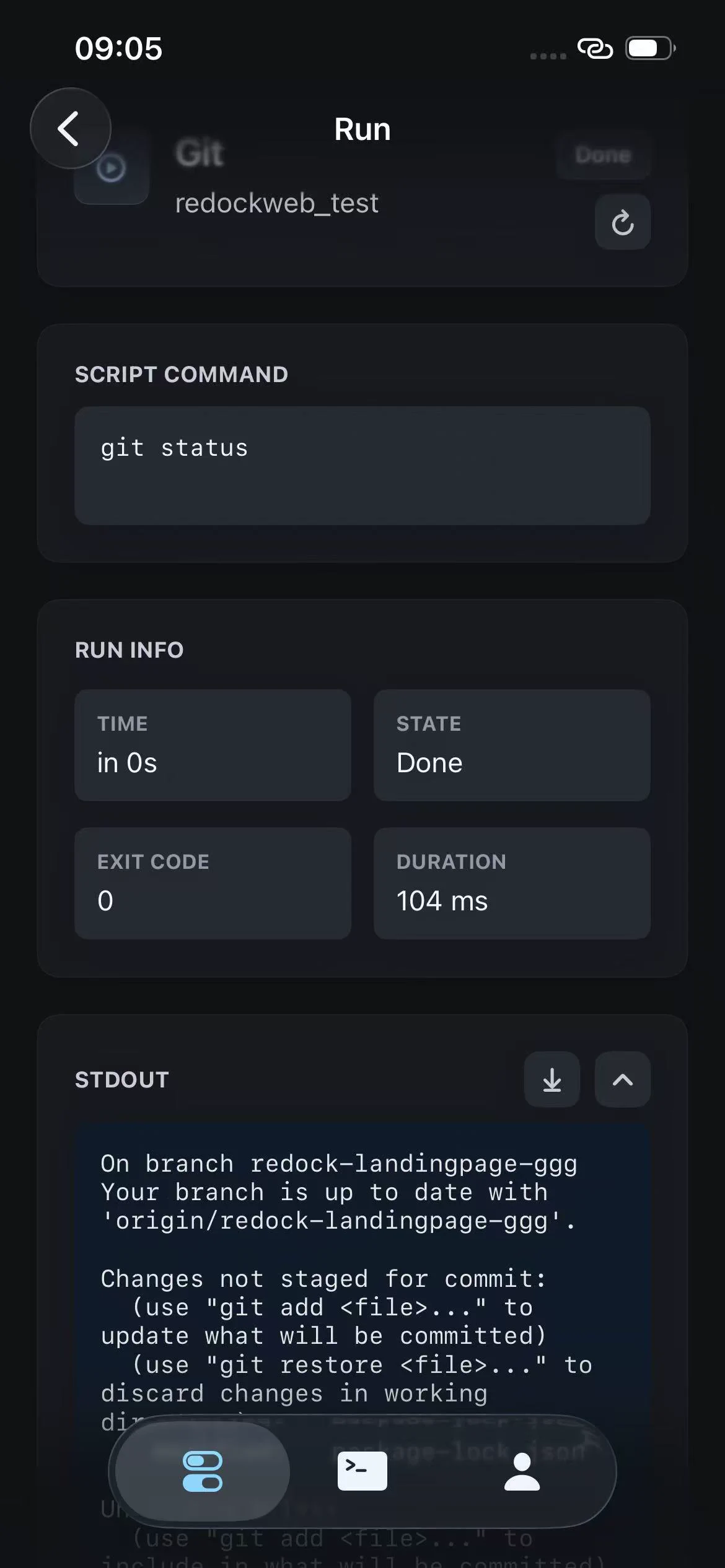
Useful Action examples:
claude
npm run lint
npm test
./scripts/deploy-staging.sh
Use Snippets for Fast Terminal Input
Snippets are small commands you want to send quickly while already inside a terminal. Redock includes built-in groups for agents, Git, and tmux. Project snippets appear when the current terminal belongs to a Project.
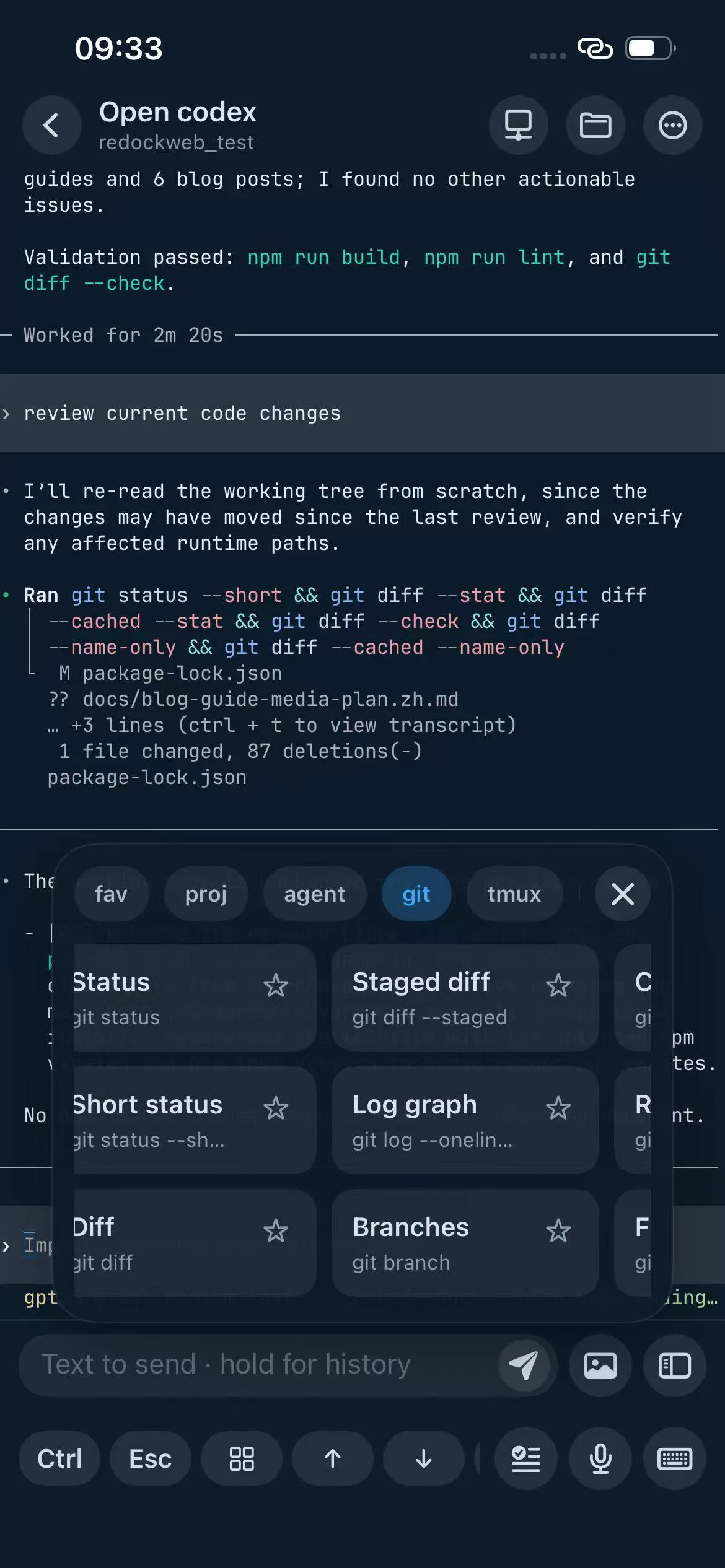
Good snippet examples:
git diff --staged
git log --oneline --decorate --graph -20
/resume
tmux capture-pane -p -S -200
Do not make destructive commands into casual one-tap snippets. Commands such as git reset --hard, git clean -fd, production database writes, or force deploys should require manual attention.
Combine tmux with Agents
For serious mobile work, enable tmux on the Host and use Project entry points. A practical setup is:
- Open the Project.
- Start or resume a tmux-backed terminal.
- Run the agent in one pane.
- Use snippets for Git, tests, and tmux pane navigation.
- Return later from Activity or the Project connection picker.
Mosh helps when the mobile network changes. tmux helps when the session needs to keep running on the host. They solve different problems and work well together.
Keep the Workflow Clear
- Use Redock to move work through coding, testing, verification, and release steps.
- Keep development tools, dependency installation, and AI agents on the remote host.
- Put repeatable execution steps into Actions.
- Put repository-specific workflow context into Projects.
- Put small frequent commands into Snippets.
- Keep secrets out of snippets and action names.
- Check
pwd,git branch, andgit statusbefore running commands that change state.