

Herdr already keeps persistent, agent-aware workspaces alive on your development host. The hard part on a phone is not persistence—it is navigation. Once a few workspaces and panes are running, a quick check-in turns into a series of small decisions: which workspace, which pane, is the agent working or blocked, and do you need to read a long answer or drive an interactive TUI?
Redock turns those decisions into two controls in the terminal. A Chat View switch beside the composer changes how you read and reply to the same conversation, and a herdr panel one tap to its left lets you browse and jump between Spaces, Tabs, and Panes without touching the terminal sidebar.
At a glance:
- Chat View shows the same agent conversation as messages and does not create a new session.
- The herdr panel (sheep icon beside the Chat View switch) browses Space → Tab → Pane and jumps to an Agent.
- Switching panes works by tapping a row in the panel or by swiping left or right in the terminal.
- Chat View supports Codex, Claude Code, Pi, Oh My Pi, Kimi Code, Grok Build, OpenCode, and Antigravity CLI.
This article is about daily use. For the concepts, see What Is Herdr?; for the internals and the comparison with tmux, see How Herdr Works. Here we assume Herdr is installed and reachable, and focus on getting value out of it from an iPhone or Android phone.
Before you start
Three things need to be in place:
- SSH or Mosh from the phone to the development host already works.
herdris installed on the host and available on the remotePATH(see the herdr setup guide).- The Redock Host is set to Session persistence → herdr in the Host editor.
On the host, confirm the binary before involving the phone:
curl -fsSL https://herdr.dev/install.sh | sh
herdr --version
When a Host uses herdr, Redock lists named sessions and creates one per Host, Project, or Action connection. Reconnecting returns to the same session when possible, so the workspace you left is the workspace you come back to. For the first connection, start with the Quick Start guide; to reach the host from outside your LAN, use Tailscale.
Two Redock controls: the herdr panel and Chat View
The terminal toolbar has two adjacent controls that are easy to confuse:
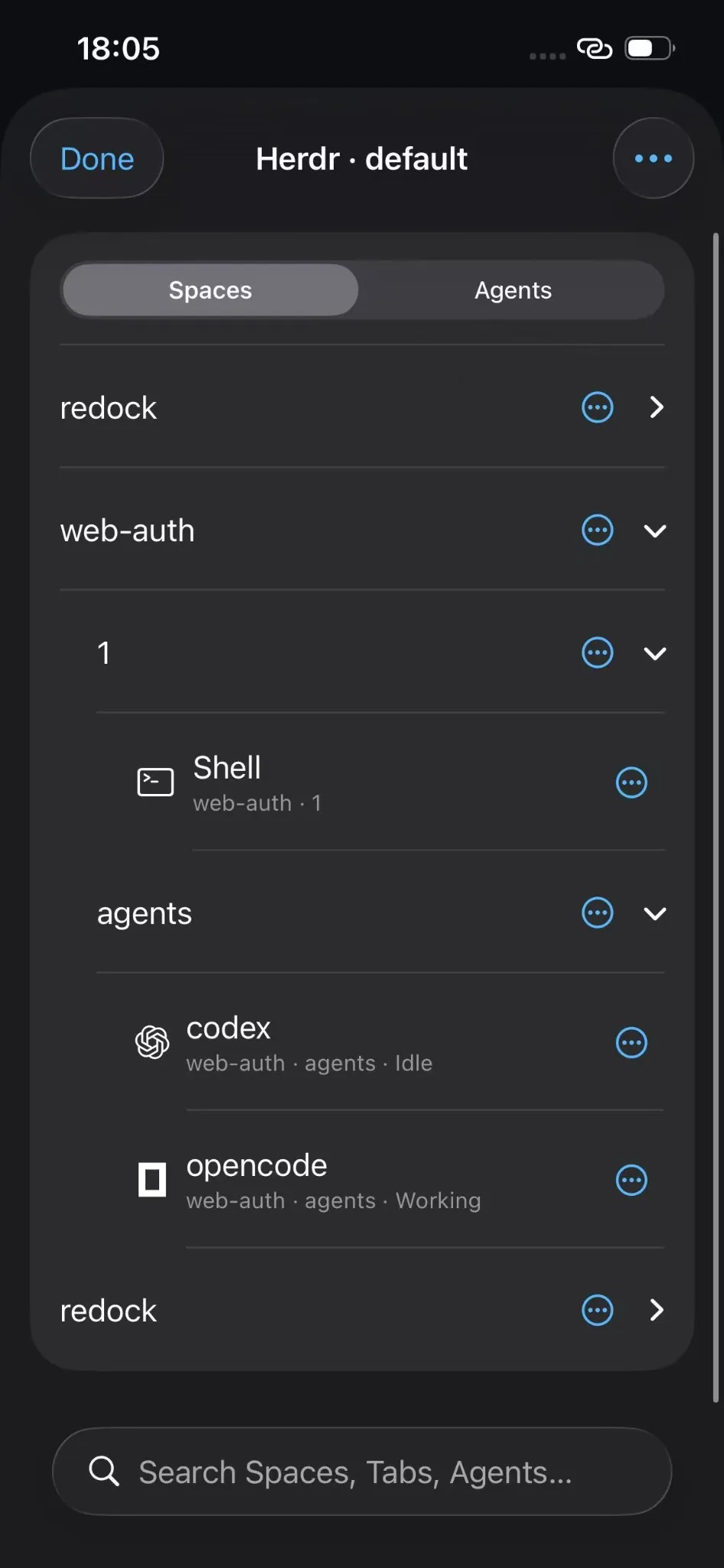
- The herdr icon opens a spacious native panel for browsing and managing the workspace—Spaces, Tabs, Panes, and recognized Agents.
- The view switch toggles the same conversation between Chat View and Terminal View.
They answer different questions. The herdr panel answers where am I going?; the view switch answers how do I want to read and reply? You will use both during the same short check-in.
Reading agent output in Chat View
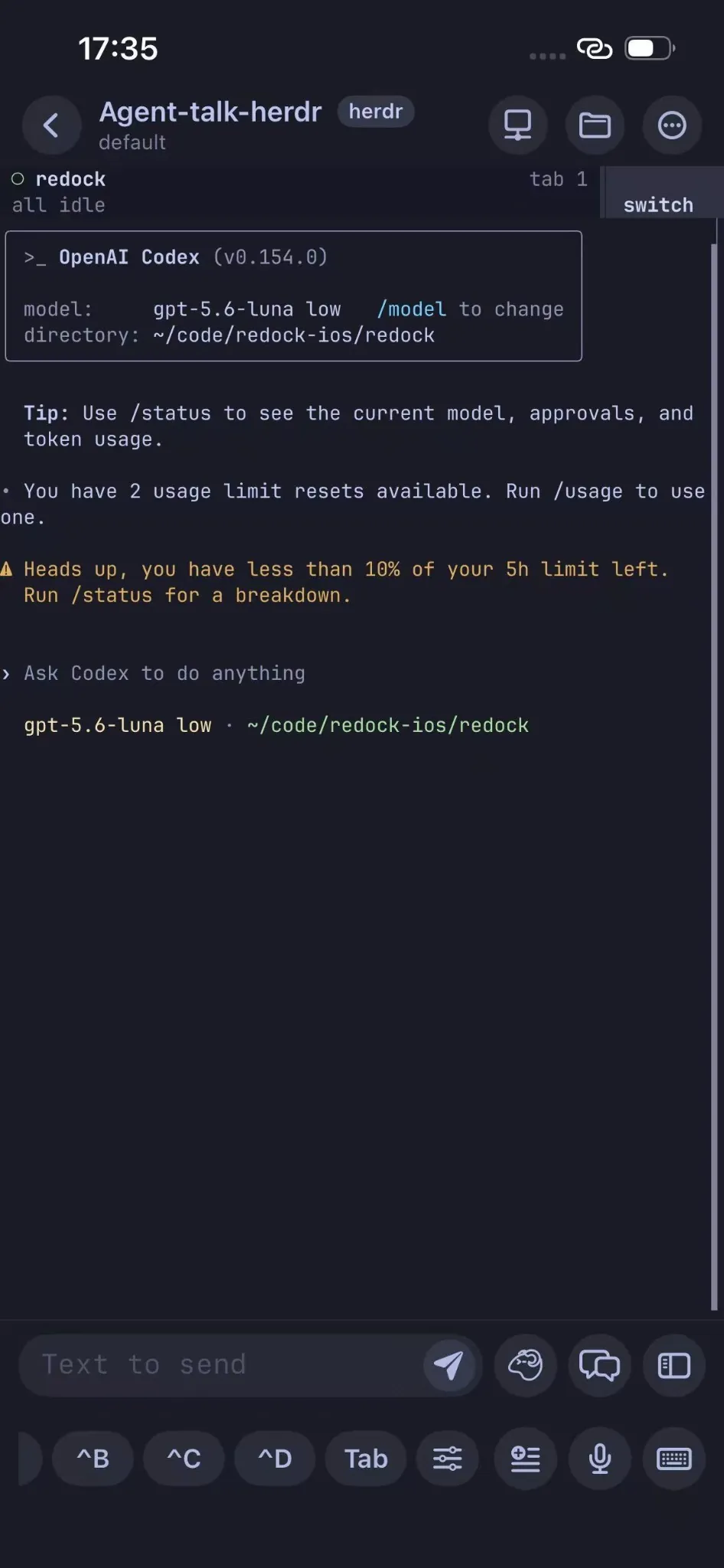
A coding agent's TUI is built for a keyboard and a wide terminal. On a phone, a long explanation, a table, or a diff becomes a wall of wrapped text that is hard to scan and easy to misread.
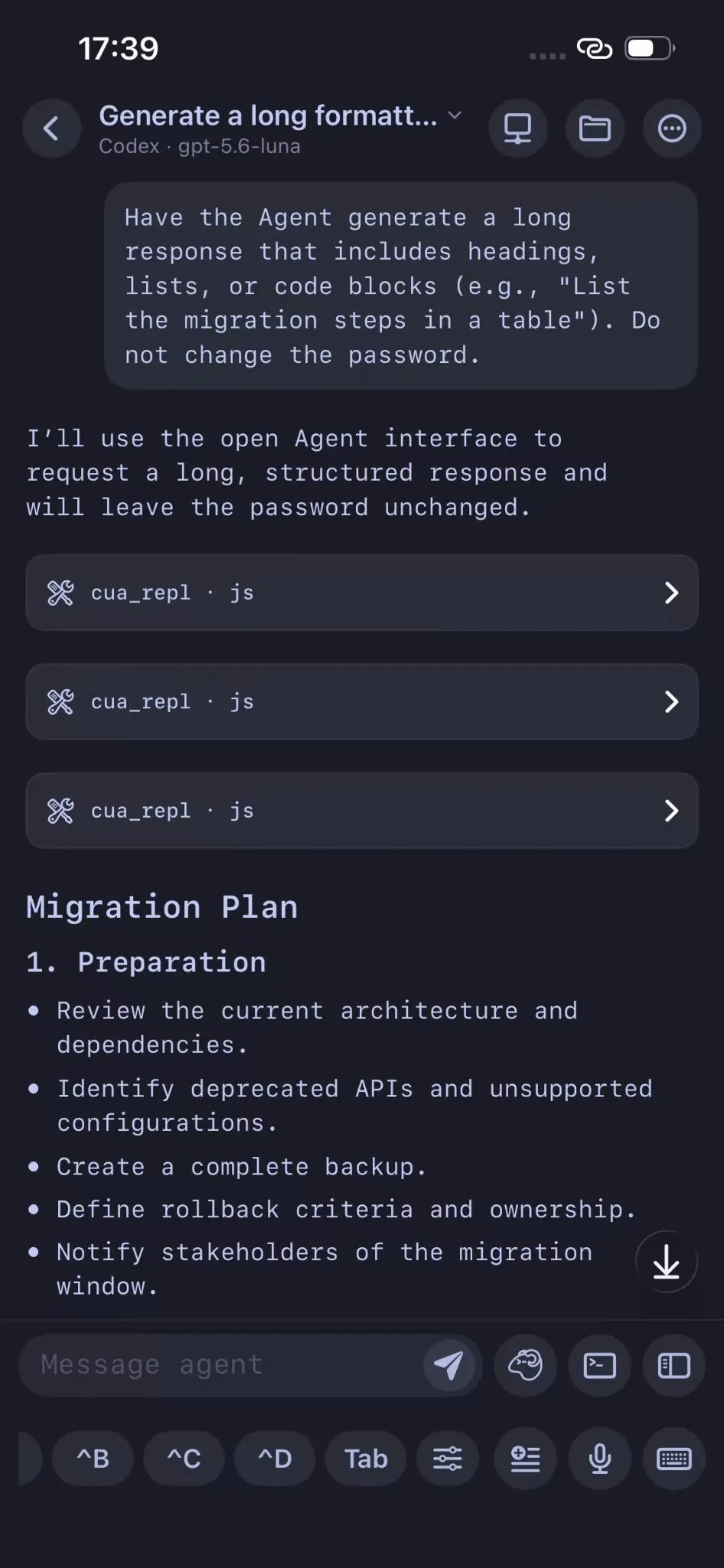
Chat View renders the same conversation as messages: answers keep their Markdown, tables, and code structure, and tool details stay collapsed until you need them. Working status and elapsed time reflect confirmed agent activity, so you can tell the difference between an agent that is thinking and one that is waiting for you.
The important part is what does not happen: switching views does not start a new agent conversation or restart anything. Chat View and Terminal View are two presentations of one live session.
Use Chat View when you are:
- Reviewing a long explanation or a code suggestion on a small screen.
- Sending a follow-up without navigating the agent's full TUI.
- Checking which files the agent touched and reading the result.
Use Terminal View when the task needs the agent's own interface: interactive menus, permission prompts, slash commands, or any part of the TUI that is not a plain conversation. Switching back is a single tap.
A few details worth knowing:
- Chat View supports Codex, Claude Code, Pi, Oh My Pi, Kimi Code, Grok Build, OpenCode, and Antigravity CLI.
- Conversation data is read over SSH, not through the notification relay, and a bounded local cache keeps recent content available while Redock checks for changes.
- Tapping a clickable file path in a reply opens the file's location over SFTP, with an edit option for supported UTF-8 files up to 1 MB.
- The composer, top bar, and shortcuts stay available in both views.
Chat View is a reading and replying surface, not a replacement for the TUI. Treat it as the default way to read, and drop into Terminal View when the agent needs its own controls.
How to switch herdr Spaces, Tabs, and Panes on a phone
On a desktop, the Herdr sidebar is right there. On a phone, the fastest path is the native panel:
- Tap the herdr icon beside the view switch.
- Browse Space → Tab → Pane, or search names and working directories in the Agents list.
- Tap a Pane / Agent row to jump straight to that terminal.
- Create Spaces and Tabs, split panes right or down, rename, and close—all from the panel. Leave a new name blank to let herdr name it.
You do not have to open the panel for everything:
- In the terminal, a one-finger swipe left or right switches panes and workspaces. Start away from the screen edges so the gesture is not mistaken for a system swipe.
- Open Snippet → herdr for quick actions such as sidebar, tabs, panes, and detach.
- Double-tap to open herdr's context menu, and pinch to change the terminal font size.
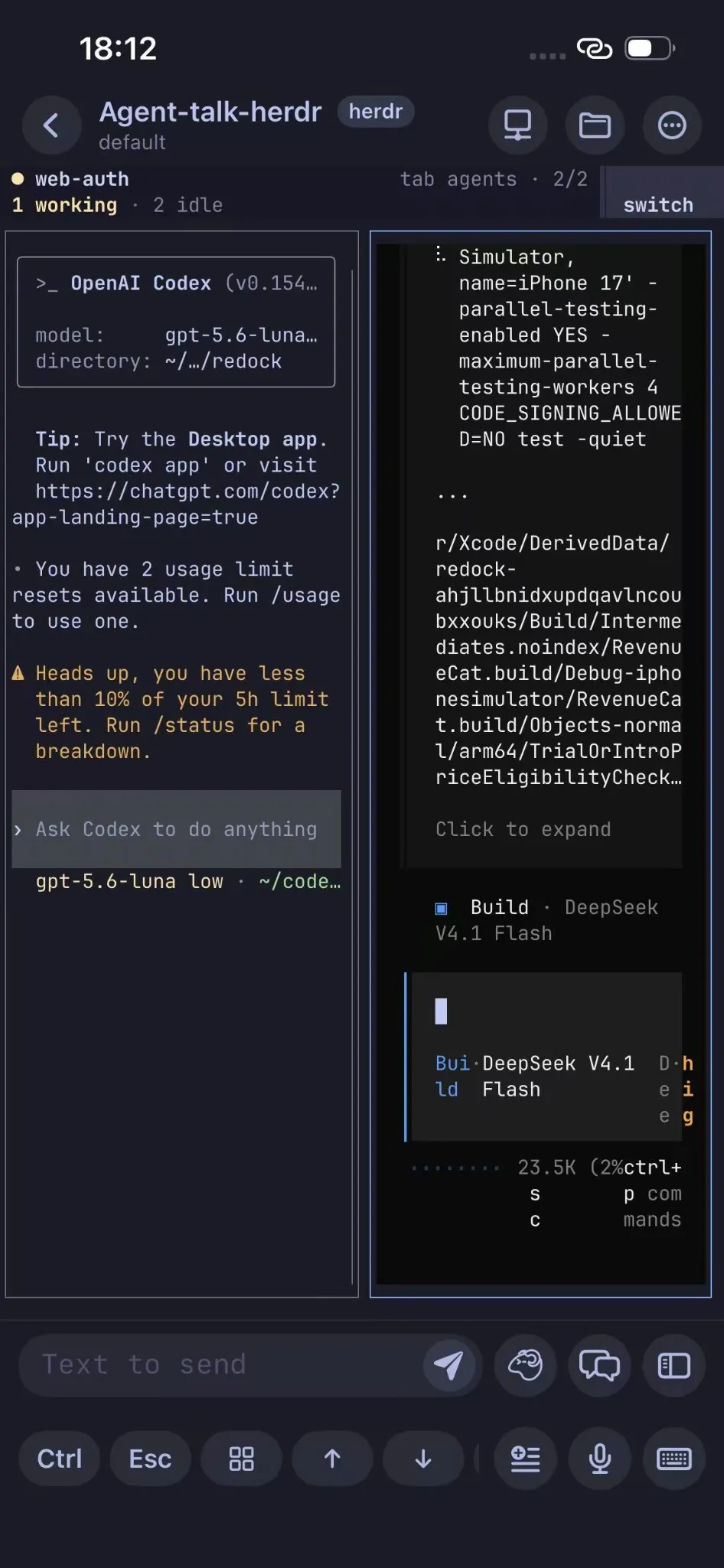
The panel is what makes a phone viable for several agents at once: you can see the whole Space → Tab → Pane tree, spot the pane that is blocked or done, and land on it in a tap or two instead of scrolling the terminal sidebar.
A short phone check-in
Putting it together, a useful check-in stays short:
- Open the Redock Project for the repository.
- Connect. Redock returns to the herdr session associated with that Host, Project, or Action entry when possible.
- Tap the herdr icon and scan the tree for
blockedordonepanes. - Tap the pane to jump to its terminal.
- Switch to Chat View and read what the agent is asking.
- Reply in the composer; switch back to Terminal View only if the agent needs an interactive menu.
- Swipe to the next pane and repeat.
- Detach with
Ctrl+B, thenq, and let the agents keep working on the host.
The phone is not where the work happens. It is where you clear the decisions—approve, answer, redirect, or move on—so the host-side agents are not blocked while you are away.
Where the boundary is
- Herdr owns the runtime. Redock does not change how Herdr stores panes or tracks agents; it makes the phone side easier to navigate and read.
- Do not nest tmux inside a herdr pane. Herdr would see
tmuxas the foreground process and miss the agent behind it, so status and restore break. - Chat View complements the TUI. Interactive commands and permission flows still belong in Terminal View. Always read the real pane before approving.
- The host must stay awake. Persistence survives a client disconnect, not a sleeping or powered-off machine.
- Agent status is heuristic. A new agent UI may report
idleinstead ofblockeduntil Herdr learns the prompt shape. - Usage limits apply. Chat View is free for 3 conversations per day; reopening the same conversation on the same day does not use another slot, and Pro is unlimited.
FAQ
Does switching to Chat View create a new agent conversation?
No. Chat View and Terminal View are two views of the same live conversation. Switching does not start a new session or restart the agent.
Which agents work with Chat View?
Codex, Claude Code, Pi, Oh My Pi, Kimi Code, Grok Build, OpenCode, and Antigravity CLI. Conversation data is read over SSH rather than the notification relay.
How do I switch between herdr panes on a phone?
Tap the herdr icon beside the view switch and select a Pane or Agent row, or swipe left or right in the terminal (start away from the screen edges). Snippet → herdr also exposes quick actions such as sidebar, tabs, panes, and detach.
Do I still need the Herdr sidebar?
No. The panel provides the same Space → Tab → Pane navigation in a larger, touch-friendly layout, and you can create, split, rename, and close workspaces from it.
Can I use Herdr inside tmux inside Redock?
Avoid wrapping the agent in tmux inside a herdr pane. Herdr detects the foreground process, so a nested tmux hides the agent and breaks status detection and native restore.
Conclusion
Persistence is only the first half of using agents from a phone; the second half is moving between them and reading them comfortably. Redock adds those two surfaces on top of Herdr: Chat View for reading and replying to the same conversation, and the herdr panel for jumping between Spaces, Tabs, and Panes.
Herdr keeps the workspaces and agents alive on the host. Redock makes the phone a fast way to find the one that needs you—and to answer it without leaving the workflow.