

Codex CLI is most useful when it can work inside the development environment I already trust: the real repository, Git configuration, language runtimes, test commands, services, and credentials on my Mac or server. The problem starts when I leave that machine while several Codex tasks are still running.
A single persistent terminal is easy to recover. Several agents are harder. I need to know which repository each one belongs to, which Codex session is still working, which one is waiting for approval, and where to return without opening every terminal in turn.
That is where Herdr changes this setup. Herdr is an agent-oriented terminal runtime that runs on the development host. It keeps real terminal panes in a background server, groups them into project workspaces, detects Codex and other coding agents, and surfaces whether they are working, blocked, done, or idle.
Tailscale and SSH handle the route back to that machine. Herdr handles the long-lived terminal workspace once I arrive. From the phone, the result is a compact control room for multiple Codex tasks rather than a pile of anonymous SSH tabs.
The Setup at a Glance
The complete path is:
Phone → Tailscale → SSH → development host → Herdr → Codex
Codex, Herdr, the repository, and the toolchain run on the Mac, Linux PC, or server. Tailscale makes that host privately reachable, SSH opens the shell, and running herdr attaches the phone terminal to the existing Herdr Session.
| Layer | Responsibility |
|---|---|
| Codex CLI | Inspects the repository, edits files, runs commands, and reviews changes |
| Herdr | Owns persistent terminal panes, workspaces, layouts, and agent status |
| SSH | Provides the encrypted remote shell and normal host authentication |
| Tailscale | Connects the phone and host through a private tailnet |
| Redock | Organizes the mobile SSH/Mosh entry point around Hosts, Projects, Actions, and terminal sessions |
This guide uses Tailscale as the network layer and standard SSH keys or passwords for authentication. Tailscale SSH is another valid design, but it is not required.
Can You Run Codex on a Phone?
Yes, with Codex CLI running on a development host. Both iPhone and Android can connect to that host over SSH and display the same Codex terminal you would use at a desk.
This model avoids rebuilding a development environment on the phone. Codex sees the host's repository, AGENTS.md, Git state, sandbox settings, plugins, language tools, and local services. The phone only needs a reliable network path and a terminal client that can render the Herdr TUI.
The host still has to remain powered on and awake. Herdr survives a client detaching; it cannot execute code on a sleeping laptop or a powered-off server.
Prepare Codex on the Development Host
Install and sign in to Codex on the machine where the project lives. Open the repository and verify the CLI before adding Herdr:
cd ~/projects/your-app
codex --version
codex
Complete the first login and confirm that Codex can read the repository and run an appropriate project command. Keep permissions deliberate, especially when the host contains production credentials or other sensitive repositories.
This article focuses on mobile access rather than Codex installation. Use the current official Codex CLI guide if codex --version fails.
Install Herdr and the Codex Integration
Install Herdr on the same host as Codex. On macOS or Linux, use the official installer or Homebrew:
curl -fsSL https://herdr.dev/install.sh | sh

# Or on macOS
brew install herdr
Start it once from a project directory:
cd ~/projects/your-app
herdr
Herdr starts or attaches to its default background Session. A Workspace holds project-level context; Tabs and Panes hold shells, Codex, tests, logs, and development servers.
Codex works without a direct integration because Herdr can identify its foreground process and terminal screen. Install the official Codex integration as well if you want Herdr to record the native Codex Session identity for restoration after a Herdr Server restart:
herdr integration install codex
herdr integration status
Herdr's current documentation says the integration updates Codex hook configuration and reports Session identity. Agent state still comes from Herdr's screen detection. That distinction matters: the integration improves restore behavior, while Herdr's terminal view determines whether Codex looks working, blocked, done, or idle.
Start Codex Inside Herdr
Inside a Herdr Pane, enter the repository and launch Codex normally:
cd ~/projects/your-app
codex
For multiple tasks, create a separate Workspace, Tab, or Pane for each repository or isolated Git Worktree. Do not point several Codex instances at the same mutable checkout unless you have intentionally coordinated their changes.
A practical arrangement might be:
| Workspace | Branch or Worktree | Agent task |
|---|---|---|
web-auth |
fix/session-expiry |
Fix and test authentication expiry |
api-review |
review/rate-limit |
Review uncommitted API changes |
docs |
docs/mobile-codex |
Update and verify documentation |
Detach from Herdr with Ctrl+B, then q, or simply let the SSH connection close. The Herdr Server and its Pane processes remain on the host. Reattach later by running herdr again.
Enable SSH and Add Tailscale
On macOS, enable System Settings → General → Sharing → Remote Login and limit access to the development account. On Linux, install and enable the OpenSSH Server for your distribution.
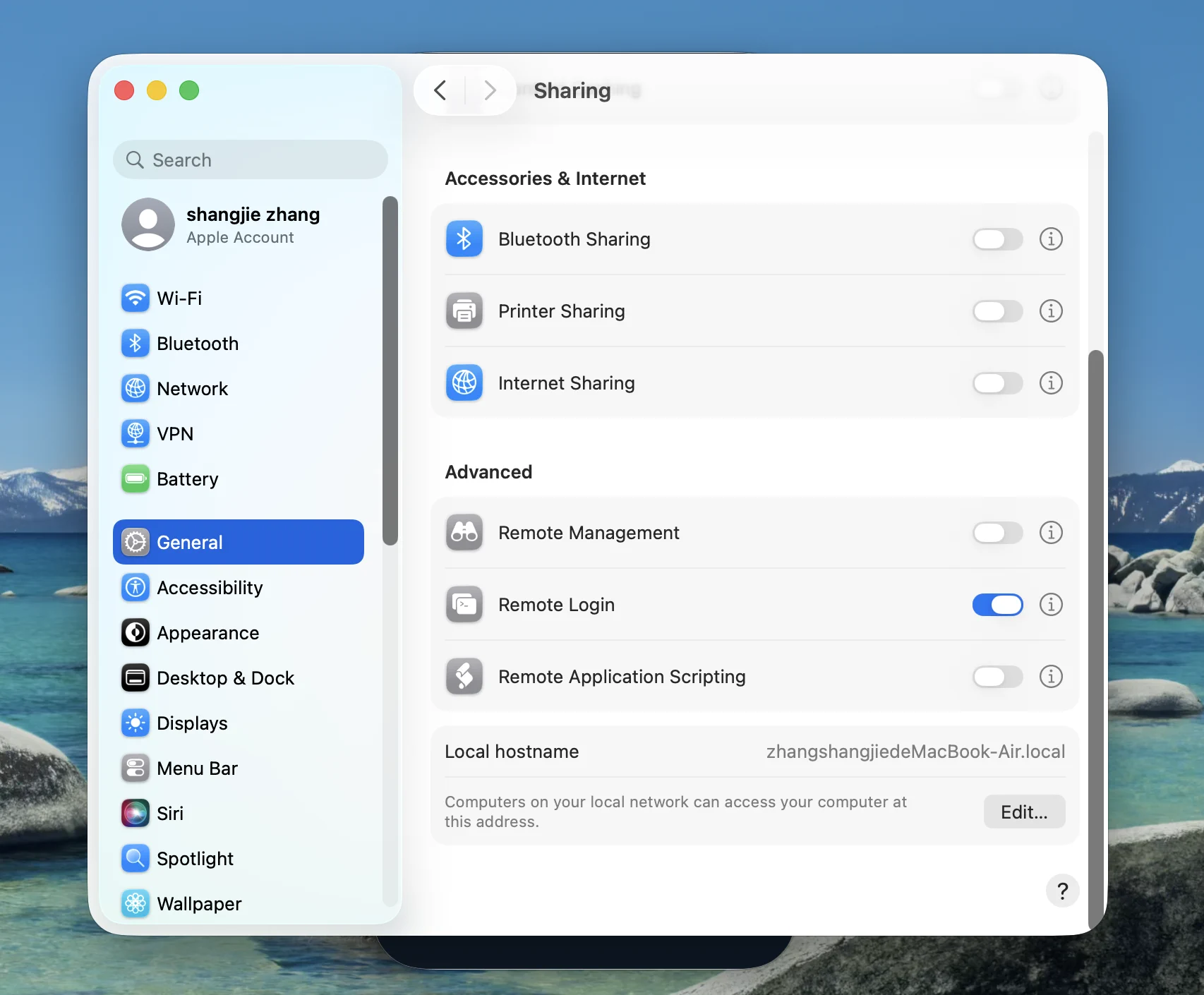
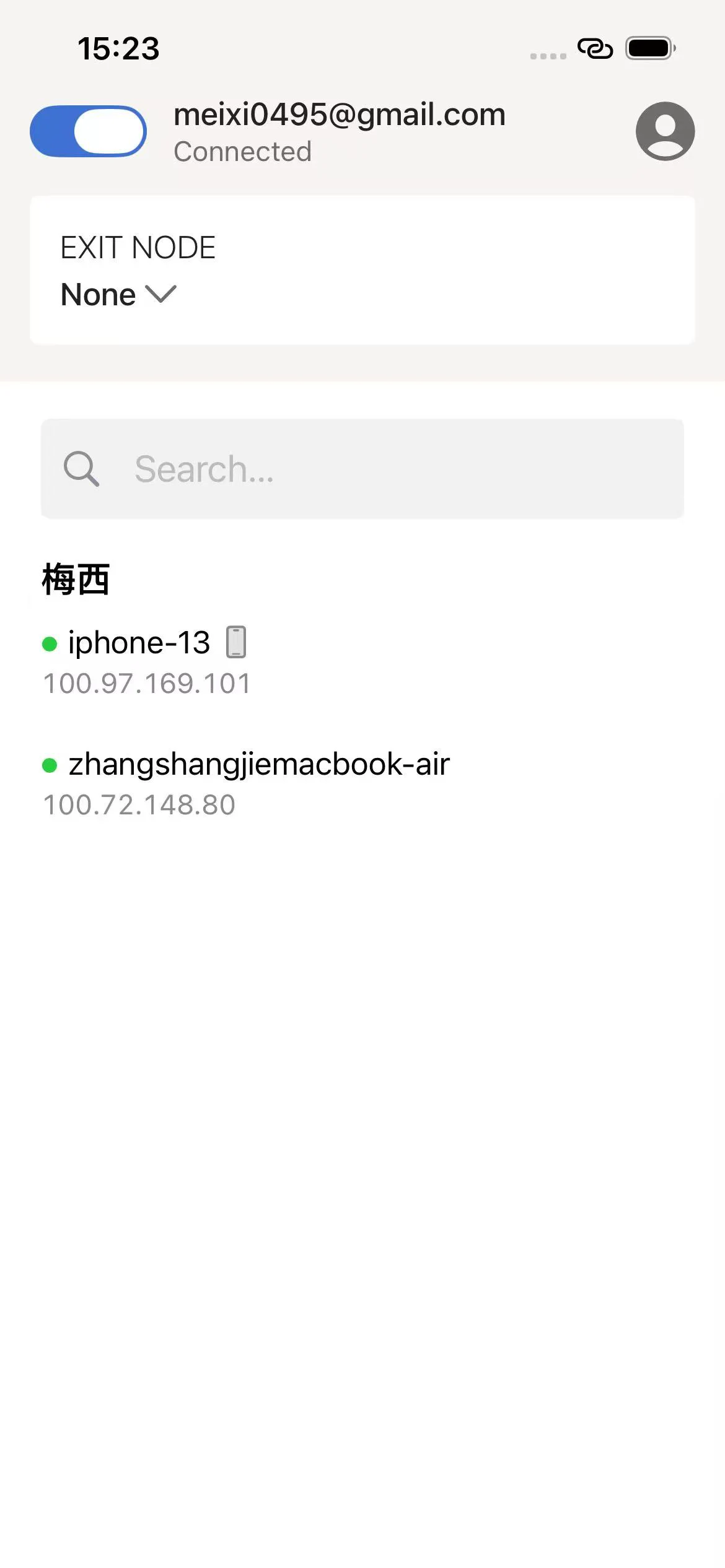
Install Tailscale on the host and the iPhone or Android phone, then sign both into the same tailnet. Use either the host's Tailscale IP or MagicDNS name. Test while the phone is on cellular data so you know the route does not depend on local Wi-Fi.
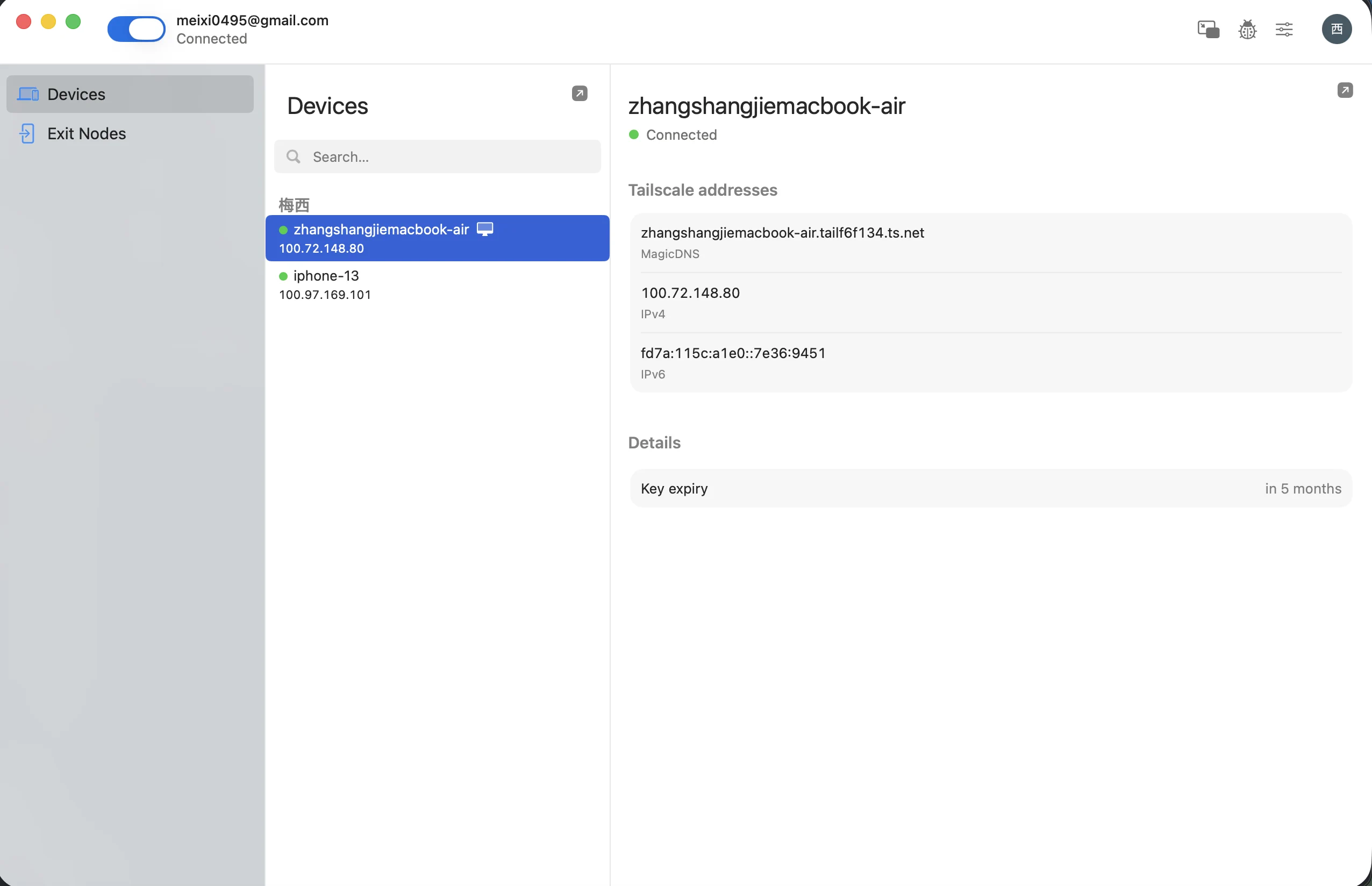
In this setup, Tailscale provides private reachability while OpenSSH continues to authenticate with the host's normal SSH key or password policy. There is no need to expose port 22 directly to the public internet. The existing Tailscale guide covers enrollment and connectivity checks, and the quick-start guide covers the first Redock Host connection.
Connect to Herdr from Your Phone
Any capable phone SSH client can follow Herdr's documented mobile path:
ssh you@development-host
herdr
The second command attaches to the existing Herdr Session and renders its responsive TUI in the phone terminal. You can switch Workspaces, inspect Agent status, focus the Codex Pane that needs attention, and detach again without stopping the work.
The basic path is simple, but repeated use introduces familiar mobile friction: selecting the correct Host, entering a repository, remembering which saved command starts a check, and moving between connection context and project context.
This is where Redock fits naturally. Save the Tailscale address, port, username, and SSH key as a Host, then associate the Host and repository directory with a Project. Redock provides the mobile terminal in which herdr runs, while Projects and Actions keep the surrounding entry points—tests, Git checks, logs, builds, and restarts—available without reconstructing them from shell history.
Redock does not replace Herdr. Herdr owns the persistent terminal runtime and Agent layout on the host; Redock makes that host and its project workflows easier to reach from iPhone or Android over SSH or Mosh.
For reading agent replies and switching panes on the phone, see Using Herdr Inside Redock: Chat View and Pane Switching.
A Practical Mobile Codex Workflow
Here is the loop I use when several Codex tasks are active:
- Open the relevant Redock Project and connect to its Host.
- Run
herdrto reattach to the existing Agent workspace. - Use the Herdr sidebar to find the Codex Pane that is blocked, done, or still working.
- Read the current output and answer only the decision that needs attention.
- Detach and let the Agent continue on the host.
- Return later and inspect
git statusandgit diffin the correct Worktree. - Run the repository's test, lint, or build command, either in a Herdr Pane or as a repeatable Redock Action.
- Commit and push only after reviewing the actual changes and command output.
The valuable part is not typing code on a small screen. It is seeing the state of several ongoing Codex tasks and intervening at the right moment.
Herdr Persistence Is Not the Same as Process Immortality
Herdr has two different recovery paths that should not be confused.
During a normal detach or SSH disconnect, the background Herdr Server remains alive. Its Panes, shells, Codex processes, tests, and logs continue running. Reattaching returns to those same live processes.
If the Herdr Server or host actually stops, those processes are gone. Herdr can restore the saved Workspace, Tab, Pane, directory, and layout. With a current Codex integration, it can also use Codex's native codex resume <id> path to reopen the Agent conversation. That is a reconstructed Session, not the original operating-system process continuing through a reboot.
This is also why you should not run tmux inside a Herdr Pane around Codex. Herdr's documentation notes that Agent detection does not look through nested tmux Sessions; it sees tmux as the foreground process instead of Codex. Choose Herdr as the terminal runtime for this workflow rather than stacking both layers.
Herdr or tmux for Codex?
Both can keep a terminal available after SSH disconnects, but they optimize different workloads:
| Choose | Best fit |
|---|---|
| tmux | A small number of standard, portable Sessions with a mature Unix workflow |
| Herdr | Multiple coding Agents, project Workspaces, visible state rollups, direct Agent attach, and native Session restoration |
If you run one Codex Session and already know tmux, tmux may be all you need. See How to Run Claude Code on Phone for the same network pattern with tmux.
Herdr becomes more useful when the problem is no longer “keep this one terminal alive” but “show me which of these Agents needs me.” Its sidebar and Agent model reduce the need to inspect every Pane manually.
What About Codex Remote in ChatGPT?
OpenAI also provides a first-party Codex Remote experience through ChatGPT on supported accounts and hosts. That is a better choice when you want a Codex-specific mobile interface for prompts, approvals, diffs, screenshots, and task review.
SSH, Tailscale, and Herdr provide a broader terminal boundary. The same Host can run Codex, Claude Code, OpenCode, tests, logs, database consoles, and services. You also retain direct shell access when a task moves outside the Codex conversation.
The options are complementary. Use the first-party Remote interface for the richest Codex-native review surface, and keep SSH available when you need the complete development machine or several different Agent CLIs.
Troubleshooting
codex: command not found over SSH
Compare which codex in the local and SSH shells. Fix the remote login shell's PATH, then confirm codex --version as the same Host user.
herdr: command not found
Restart the shell after installation or add the Herdr install directory to PATH. Run herdr --version before testing from the phone.
The phone disconnects and Codex disappears
Codex was probably launched in the ordinary SSH shell rather than a Herdr Pane, or the Herdr Server stopped. Reconnect and run herdr; if the Workspace returns as new shells, check herdr integration status and resume the Codex Session explicitly.
Herdr does not detect Codex
Confirm Codex is the foreground process directly inside a Herdr Pane. Do not hide it behind nested tmux or another wrapper. Use herdr agent explain <target> when the visible state is wrong.
Tailscale is online but SSH fails
Check that OpenSSH is listening, the username and key are correct, incoming Tailscale connections are allowed, and tailnet policy permits phone-to-host traffic on port 22. Verify plain SSH before debugging Herdr.
FAQ
Can I run Codex directly on an iPhone?
This workflow runs Codex CLI on a Mac, Linux PC, or server and controls it from the iPhone over SSH. The repository and development tools remain on the Host.
Can I use Codex from an Android phone?
Yes. Connect Android and the Host to the same tailnet, SSH into the Host, and run herdr to return to the same Codex Panes.
What does Herdr add to a Codex phone workflow?
Herdr keeps terminal Panes in a background Server, organizes multiple Agents into Workspaces, shows which one needs attention, and supports native Codex Session restore with its official integration.
Does Codex keep running after my phone disconnects?
Yes during a normal disconnect if the Host and Herdr Server remain running. A Host shutdown ends the process; Session restore can reopen the conversation afterward.
Should I use Herdr or tmux for Codex?
Use tmux for a small, standard Session workflow. Use Herdr when multiple Agents, visible status, Workspaces, direct attach, and native restore matter. Avoid nesting tmux around Codex inside Herdr.
Keep the Whole Agent Workspace Reachable
Redock connects iPhone and Android to your own development host over SSH or Mosh. Projects preserve the Host and repository entry point, Actions expose repeatable Git, test, build, log, and service commands, and the full terminal remains available for Herdr, Codex, or another CLI Agent.