

Redock can use OpenAI speech-to-text models to turn recordings into terminal input. This is useful when you dictate longer prompts, Git messages, test plans, or mixed-language technical text on mobile.
What Redock Calls
Redock sends audio to:
POST https://api.openai.com/v1/audio/transcriptions
The request uses:
Authorization: Bearer <OpenAI API Key>multipart/form-data- Audio field:
file - Response format:
json - Model: the OpenAI speech model selected in Redock
Redock records 16 kHz mono WAV audio before sending it.
Prepare an API Key
- Open OpenAI Platform.
- Confirm the selected organization and project can call the API.
- Confirm billing, quota, or project budget is available.
- Create or copy a secret key from the API Keys page.
- Keep the key private.
https://platform.openai.com/api-keys
Redock stores the API key in Keychain. It is not written into app data snapshots.
Fill It in Redock
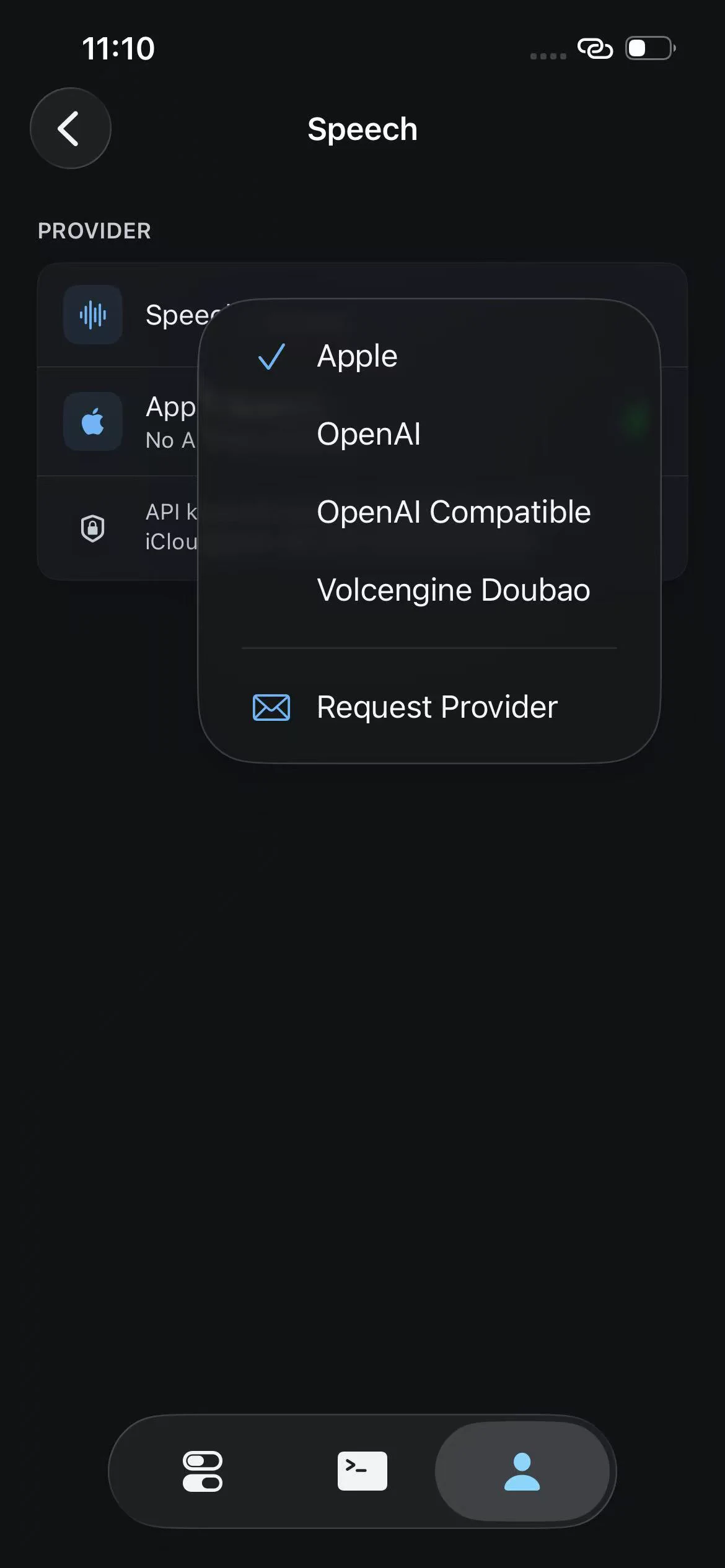
- Open My > Speech.
- Set Speech Provider to OpenAI.
- Choose a model.
- Paste the OpenAI API Key.
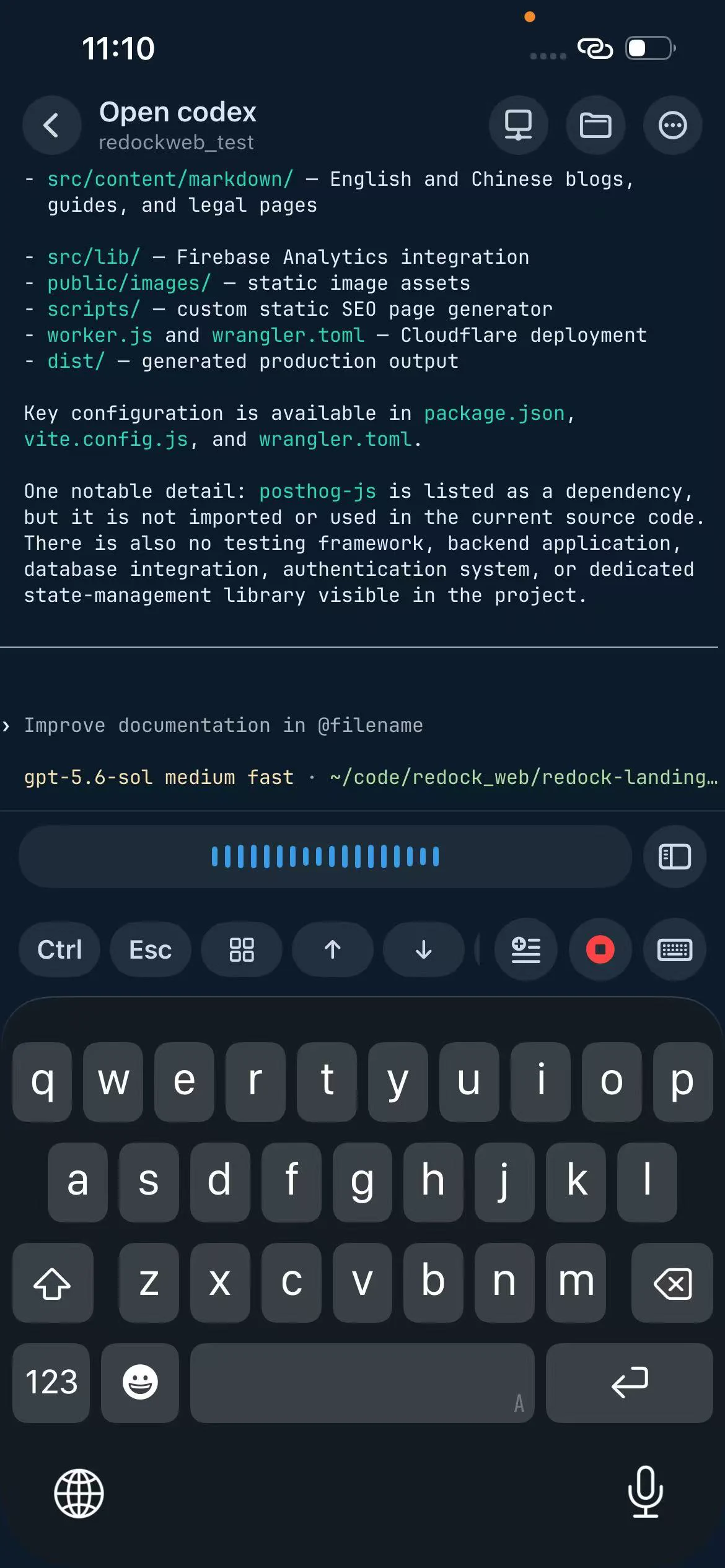
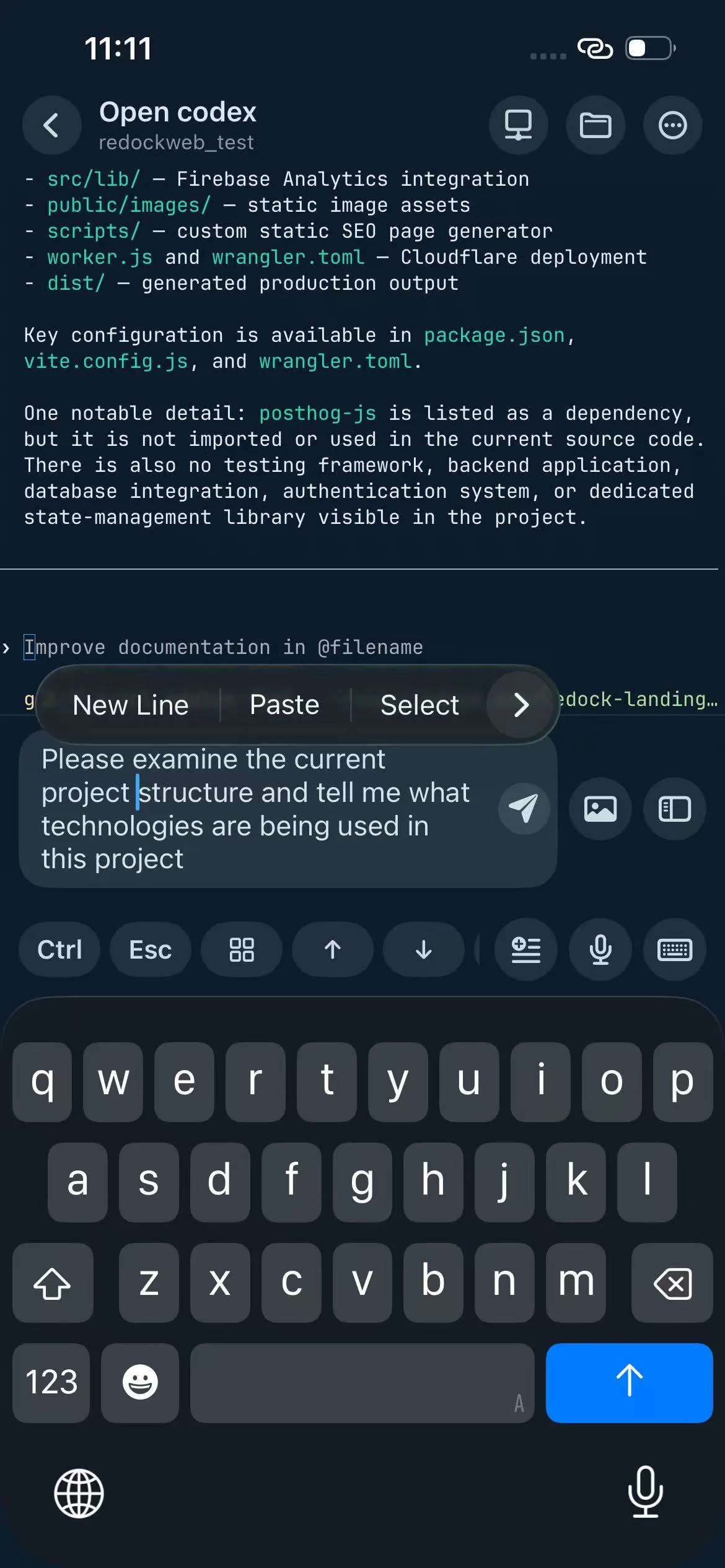
- Return to a terminal workspace and test the speech button.
Model Choices
- Fast Transcribe:
gpt-4o-mini-transcribe, the default for daily use. - Accurate Transcribe:
gpt-4o-transcribe, better when quality matters more. - Diarize:
gpt-4o-transcribe-diarize, mainly for speaker separation. Redock currently reads the finaltextfield and does not show speaker labels.
Common Issues
- Missing API key: check My > Speech.
- Authentication failed: confirm the key was copied correctly and belongs to the current project.
- No permission: check project permissions, organization role, and API key scope.
- Quota or billing error: check Platform billing and project budget.
- Poor mixed-language results: try Accurate Transcribe and speak commands or paths more clearly.